




Blogs
20 macOS Tips Every New MacBook Owner Must Know (2026)

20 macOS Tips Every New MacBook Owner Must Know (2026)
macOS has a completely different user interface from Windows. Controls that you may be used to on Windows such as snipping tool, right clicking, work completely different here. Also, some features which are exclusive to macOS remain unknown to most users.
Table of Contents
- How to Take a Screenshot on Mac (Replaces Snipping Tool)
- AirDrop — Transfer Files Instantly Between Apple Devices
- Touch ID — Unlock, Pay & Authenticate With Your Fingerprint
- Time Machine — Never Lose a File Again
- Spotlight Search — Find Anything Instantly
- Hot Corners — The Productivity Trick Nobody Uses
- Trackpad Gestures — Why Mac Users Never Use a Mouse
- 5 More Power Features: Split View, Focus Mode, Quick Look, Force Quit & Activity Monitor
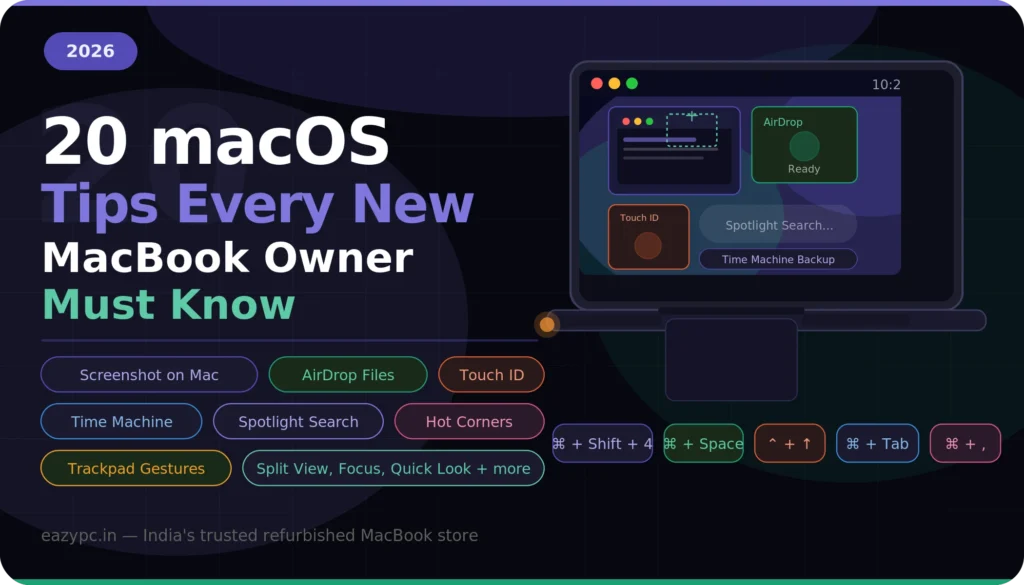
1. How to Take a Screenshot on Mac (Replaces Snipping Tool)
Most first time users Google the query “Where is the snipping tool on Mac”. It does not have a separate snipping tool app. This feature is built into the OS, with three keyboard controls:
- Capture the Entire Screen : Press Cmd + Shift + 3. The screenshot is saved instantly to your desktop as a .png file. It appears as a thumbnail in the bottom right corner. You can edit or share, before it saves.
- Capture a Selected Area (The “Snipping Tool” Equivalent): Press Cmd+Shift+4 to capture a selected area on the screen. Similar to windows UI, you click and drag it to the part you want to capture. It saves directly on your desktop.
- The Screenshot Toolbar (Full Control): Press Cmd + Shift + 5 to open the full screenshot toolbar. It gives you the option of capturing the full screen, selected area and screen recording, with or without microphone audio. The toolbar has additional functionality features built into it.
| Shortcut | What It Does | Best For |
|---|---|---|
| Cmd + Shift + 3 | Captures entire screen | Quick full-screen grabs |
| Cmd + Shift + 4 | Captures selected area (crosshair) | Snipping a specific region |
| Cmd + Shift + 4 + Space | Captures a specific window | Clean window shots for docs |
| Cmd + Shift + 5 | Opens screenshot toolbar with all options | Screen recording, timed shots |
2. AirDrop — Transfer Files Instantly Between Apple Devices
AirDrop is an industry leading feature, with nothing else coming close in the user experience. Everything else feels primitive. It uses a combination of Bluetooth and Wi-Fi to transfer files directly between Apple devices, with no limits.
How to Use AirDrop on Your MacBook
- To send a file: Right-click (or Control-click) any file → Share → AirDrop. Your MacBook scans for nearby Apple devices. Click the recipient’s name, and the file starts transferring immediately. Photos, PDFs, videos, zip archives, app installers — anything goes.
- To receive files: Open Finder → AirDrop (in the sidebar). Make sure your visibility is set to “Everyone” or “Contacts Only.” When someone sends you a file, you’ll get a notification with a preview and an Accept/Decline button. Accepted files land in your Downloads folder.
AirDrop transfers any file instantly between Apple devices using Bluetooth + Wi-Fi direct. No internet, no file size limits, no hassle. Right-click → Share → AirDrop. Set visibility to "Everyone" if devices don't appear.
3. Touch ID — Unlock, Pay & Authenticate With Your Fingerprint
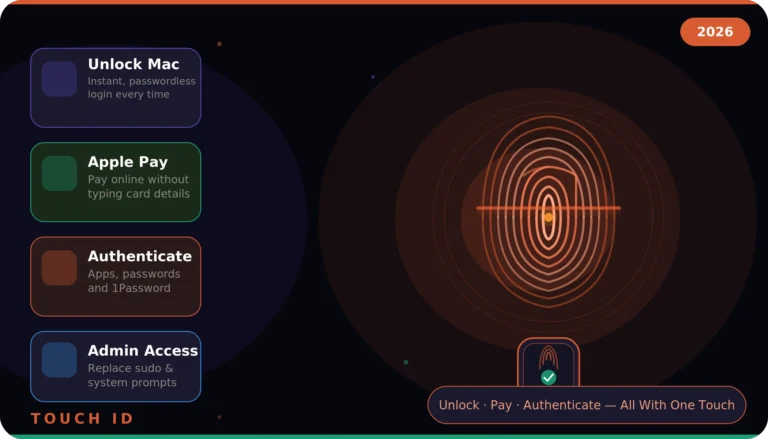
If your MacBook has Touch ID, it is a highly useful feature. It has more utility than just unlocking your laptop.
- Setting Up Touch ID: Go to System Settings → Touch ID & Password. You can register up to three fingerprints. The practical advice: register your right index finger, left index finger, and one thumb. This covers every angle you’d naturally reach the sensor.
What Touch ID Can Do
- Unlock your Mac: Open the lid, touch the sensor, you are in. The primary use case of it.
- Autofill passwords in Safari: When It works for website logins, and is faster than using a password manager.
- Authorise App Store purchases and downloads: Instead of typing your Apple ID password every time you install an app or buy something from the App Store, Touch ID approves it with a tap.
- Apple Pay on the web: When you shop at websites that support Apple Pay (Amazon India, Swiggy, BookMyShow, and many international sites), you can check out with Touch ID.
4. Time Machine — Never Lose a File Again
It is a built in backup system in the macOS. Time Machine runs in the background, creating regular backups of your entire system such as files, apps and everything else. If you lose any file, or it gets corrupted, deleted you can roll back to any point in time.
- Setting It Up (5 Minutes, Once): Plug in an external hard drive or SSD (anything with at least 2x your MacBook’s storage). Go to System Settings → General → Time Machine → Add Backup Disk. Select your drive. macOS formats it and begins the first backup. That’s it. From now on, every time you connect that drive, Time Machine updates automatically. You can also back up over Wi-Fi to a NAS or AirPort Time Capsule if you have one.
- Restoring Files: Open the folder where the missing file used to be. Click the Time Machine icon in the menu bar → “Browse Time Machine Backups.” You’ll see a beautiful timeline on the right edge of the screen. Scroll back through time, find the file or folder you need, and click Restore. The file reappears in its original location. You can restore individual files, entire folders, or even your whole system to a previous state.
- Storage tip: A 1 TB external SSD costs around ₹5,000–7,000 in India. That’s the price of one data-recovery service call. Buy the drive, set up Time Machine, and forget about it. The peace of mind is worth every rupee.
Time Machine backs up your entire Mac automatically. Plug in an external drive, set it up once in System Settings, and you'll never lose a file again. Restoring is as simple as scrolling back through time and clicking Restore.
5. Spotlight Search — Find Anything Instantly
Press Cmd + Space to open Spotlight. This is the fastest way to do anything on Mac. Most users used it like Windows search for finding files. However, it is more than that, in the following ways:
- Launch apps: Type the first 2–3 letters of any app name and press Enter. Faster than clicking through Launchpad or the Dock.
- Do maths: No calculator app needed. It handles unit conversions too: type “25 USD in INR” or “180 cm in feet” and get instant results.
- Find files by content: Spotlight also searches inside documents. Type a phrase from a report you and it will find the file.
- Preview without opening: When Spotlight shows a result, press the down arrow to select it and you’ll see a preview on the right. For images, PDFs, and documents, you can review the content without opening any app.
Cmd+Space opens Spotlight — use it to launch apps, do maths, convert units, find files by content, and preview documents. Once you start using it, you'll Spotlight everything.
6. Hot Corners — The Productivity Trick Nobody Uses
Hot Corners assign actions to the four corners of your screen. Move your mouse cursor to a corner, and macOS triggers the action instantly. No clicking, no keyboard shortcut to remember. Go to System Settings → Desktop & Dock → scroll down to Hot Corners.
The setup most power users swear by:
| Corner | Recommended Action | Why |
|---|---|---|
| ↖️ Top-left | Mission Control | See all open windows at a glance |
| ↗️ Top-right | Desktop | Instantly clear all windows to see your files |
| ↙️ Bottom-left | Lock Screen | One flick to lock when you step away |
| ↘️ Bottom-right | Quick Note | Jot something down without finding the Notes app |
Pro tip: Hold a modifier key (like Cmd or Option) while setting up a Hot Corner. This way, the action only triggers when you move the cursor to the corner while holding that key — prevents accidental triggers.
Hot Corners let you trigger actions — Mission Control, Lock Screen, Desktop, Quick Note — by moving your cursor to a screen corner. Set them up once and they become second nature.
7. Trackpad Gestures — Why Mac Users Never Use a Mouse
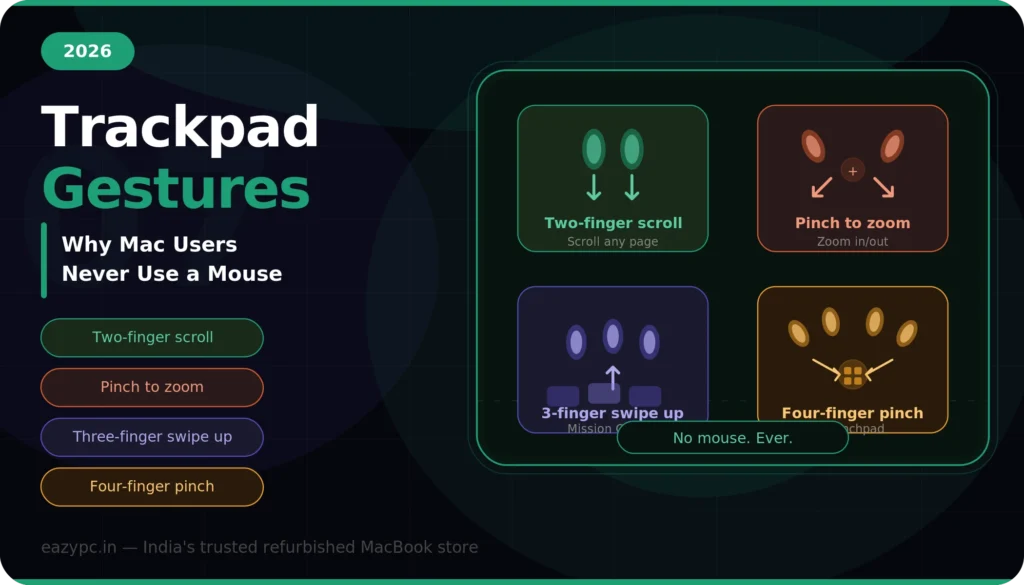
Apple’s trackpad is widely regarded as the best in the industry. It is not only about the hardware, but also the gesture controls built into the macOS. Following gestures are really helpful:
- Two-finger scroll: Place two fingers on the trackpad and slide up or down. This works everywhere — web pages, documents, menus, lists. The scrolling is momentum-based, so a fast flick scrolls further.
- Pinch to zoom: Spread two fingers apart to zoom in on photos, PDFs, maps, and web pages. Pinch them together to zoom out. Exactly like your phone.
- Three-finger swipe up: Opens Mission Control — a bird’s-eye view of all open windows and desktops. Three-finger swipe down shows all windows of the current app (App Exposé).
- Four-finger pinch: Opens Launchpad (your full app grid). Reverse pinch (spread four fingers) goes back to the desktop.
macOS trackpad gestures replace mouse actions with faster, more natural inputs. Learn two-finger scroll/tap, three-finger swipe (desktops and Mission Control), and pinch-to-zoom. Most Mac users stop reaching for a mouse within a week.
8. Five More Power Features You Should Know
Split View — Side-by-Side Windows Without Effort
Go to the green button on the top left of any screen. It will show you options to move and resize the application in 4 options. You can view multiple applications at same time in split view. It is ideal for referencing documents while writing, or watching tutorials.
Focus Mode — Control Notifications Like a Professional
Go to System Settings → Focus. Click on Add focus. Choose or setup the profile to focus on. You can then add filter on what get through while focus mode is on. It syncs across all your Apple devices, so enabling “Work” on your MacBook also silences your iPhone.
Quick Look — Preview Any File Without Opening It
You can see a full preview of any file in the Finder, by pressing the spacebar. No app is required to launch. Press spacebar again to dismiss it. This saves time while browsing through the files.
Force Quit — When an App Freezes
Press Cmd + Option + Escape to open the Force Quit window. Select the frozen app and click Force Quit. This is equivalent of Task Manager on Windows. You can also right-click an app in the Dock while holding Option, and the “Quit” option changes to “Force Quit.”
Activity Monitor — See What’s Eating Your Resources
From the activity monitor you can check the CPU usage, memory and other hardware components. You can analyze the reason why your MacBook is overheating, or the battery is draining fast.
| # | Tip | Key Shortcut / Action |
|---|---|---|
| 1 | Full screenshot | Cmd + Shift + 3 |
| 2 | Area screenshot (snipping) | Cmd + Shift + 4 |
| 3 | Window screenshot | Cmd + Shift + 4 then Space |
| 4 | Screenshot toolbar + recording | Cmd + Shift + 5 |
| 5 | AirDrop files | Right-click → Share → AirDrop |
| 6 | Open Terminal | Spotlight → "Terminal" |
| 7 | Prevent sleep | caffeinate -t 3600 |
| 8 | Show hidden files | Cmd + Shift + . (dot) |
| 9 | Touch ID setup | Settings → Touch ID & Password |
| 10 | Time Machine backup | Settings → General → Time Machine |
| 11 | Spotlight search | Cmd + Space |
| 12 | Spotlight calculator | Type maths in Spotlight |
| 13 | Hot Corners | Settings → Desktop & Dock → Hot Corners |
| 14 | Mission Control | Three-finger swipe up |
| 15 | Switch desktops | Three-finger swipe left/right |
| 16 | Split View | Hover green button → Tile |
| 17 | Focus Mode | Settings → Focus |
| 18 | Quick Look | Select file + Spacebar |
| 19 | Force Quit | Cmd + Option + Escape |
| 20 | Activity Monitor | Spotlight → "Activity Monitor" |

Start Exploring Your MacBook
The gap between a new MacBook user and a confident one is really just these 20 tips. Bookmark this page, try one tip a day, and within three weeks you’ll navigate macOS faster than you ever navigated Windows. The trackpad gestures alone will make you wonder how you lived without them.
- Looking for a MacBook that won’t break the bank? Browse EazyPC’s refurbished MacBook collection — every device passes a 32-point inspection, ships with warranty, and runs macOS exactly like new. Explore refurbished MacBooks at EazyPC
- New to the Mac world? Read our complete buying guide: Ultimate Guide to Buying a Refurbished MacBook in India (2026)
