




Blogs
How to Speed Up Your Laptop: 9 Proven Fixes That Actually Work (2026)

Your Laptop Isn't Dying — It Just Needs a Tune-Up
The Ultimate Guide to Making Your Laptop Fast Again (Without Buying a New One)
How To Speed up Laptop
You switch on your laptop to get the work done, you click on a folder and wait and then click again. Nothing happens. In the mean time you scroll the mobile, get a coffee, and it is still opening. We all have faced this. Almost anyone who has used a computer searches ways to speed up their laptop. The bright side is that this can be easily fixed.
I will explain, everything from the five-minute quick hacks to deeper fixes that can make a three-year-old machine feel new. Whether you are on Windows 10, Windows 11, using a Dell, HP, Lenovo, or any other brand, there are valuable tips here for you.
No jargon overload. No expensive software. Just practical steps that actually work.

1: Why Is My Laptop So Slow? (The Real Reasons)
As the saying goes don’t fix what is not broken. First understand where the issue is. Laptops slow down for some very common reasons:
- Too many startup programs: Many apps push default setting to launch when the laptop boots. This slows down the Windows at time of booting up.
- A full hard drive: When the storage is almost full, it slows the system
- Background processes gone wild: With too many processes occurring in the background, such as antivirus scan, Windows update, cloud sync tools they take up the computing power from your CPU.
- Outdated drivers or Windows updates: Keep your system update to get best out of it
- Malware and bloatware: Some software’s come pre-installed or get added during another installation.
- Thermal throttling: Processor deliberately slows itself down to prevent damage, when the laptop overheats. Dust is often the issue.
- Aging hardware: Software are getting compute intensive; a 4GB RAM machine running Chrome will lag.
Pro tip: Open Task Manager (Ctrl + Shift + Esc) right now and click the ‘CPU’ and ‘Memory’ columns to sort by usage. The biggest culprits usually reveal themselves immediately.
2: The 5-Minute Quick Wins
Start here. These take almost no time and have an immediate impact for most users.
1-Restart Your Laptop (Properly)
- Shut down your system at the end of your work session. Most users close the lid, to open it next day and start working. Furthermore, if the system still feels slow, do a proper restart. It clears RAM, removes temporary files and installs pending updates.
- Quick Tip: Shutdown vs Restart behave differently in Windows 10/11. Shutdown uses ‘fast startup’ and preserves some state. Restart does a full fresh boot. If things feel sluggish, always choose Restart.
2-Disable Default Startup Programs
This change can reduce boot time in half.
- Press Ctrl + Shift + Esc to open Task Manager.
- Click the Startup
- Disable any program you don’t require at login.
This does not uninstall any software, but only stops it from launching automatically.
3-Run Disk Cleanup
- Press the Windows key, type “Disk Cleanup” and open it
- Select your C drive and click OK
- Check all boxes including Temporary files, Recycle Bin, and Thumbnails
- Click Clean up system files for even more space (removes old Windows update files)
It is common to recover 5–20 GB on a laptop that has not been cleaned in long time.
4-Adjust Power Settings
Windows often defaults to a ‘Balanced’ power, this limits CPU performance to conserve battery. If you are plugged in, switch to High Performance.
- Search for Power & sleep settings in the Start menu.
- Click Additional power settings.
- Select High performance (or Ultimate Performance if available on Windows 11).
Note: On battery, ‘Balanced’ is fine. Only switch to High Performance when plugged in, otherwise your battery will drain much faster.
5-Free Up Storage Space
Windows needs at least 10–15% of your drive free to operate efficiently. If your C: drive is nearly full, this is a priority fix.
- Uninstall apps you no longer use (Settings > Apps > Installed Apps).
- Empty the Recycle Bin (right-click the desktop icon).
3: Deeper Windows Optimization
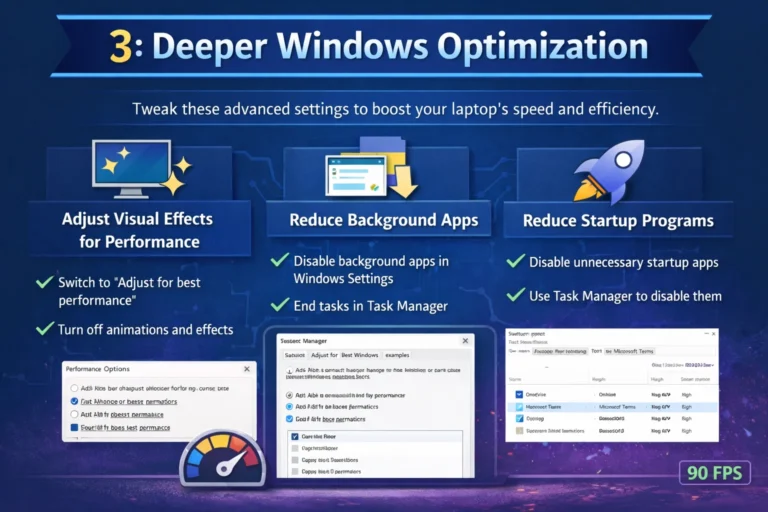
Once the quick wins are done, below mentioned settings go a level deeper. They are still free and don’t require any software downloads.
1-Adjust Visual Effects for Performance
Windows 10 and 11 apply a lot of animations, shadows, and transparency effects that consume resources on lower-end machines.
- Search for Adjust the appearance and performance of Windows in the Start menu.
- Select Adjust for best performance to disable all effects, or manually uncheck the heavy ones like Animate windows, Fade effects, and Shadows.
- Click Apply and notice how much faster system feels.
2- Reduce Background Apps
- Go to Settings > Privacy > Background apps (Windows 10) or Settings > Apps > Apps & features (Windows 11).
- Turn off background permissions for apps that are not required, such as Mail, Maps, and news apps.
3-Configure Windows Update to Stop Slowing You Down
- Go to Settings > Windows Update > Advanced Options.
- Enable Active hours so updates don’t install while you are working.
4- Speed Up File Indexing
Windows continuously index files to search work instantly, this uses CPU and disk resources. If you rarely use Windows Search, you can limit what it indexes.
- Search for Indexing Options in the Start menu.
- Click Modify and uncheck locations you don’t need indexed (like large media folders).
- Alternatively, click Advanced > Rebuild to fix a bloated or corrupted index that’s consuming resources.
Avoid ‘registry cleaner’ tools that promise miraculous speed improvements — most are either useless or actively harmful. Stick to reputable tools like Autoruns or the built-in Windows tools.
4: Turbocharging Your Boot Time
Does your laptop take three minutes to be usable after you log in? Here is how you can cut this down.
1-Enable Fast Startup
- Search for Choose what the power buttons do in the Start menu.
- Click Turn on fast startup (recommended) and save changes.
2-Move Windows to an SSD
This is the most impactful hardware upgrade you can do. The difference between HDD and a solid state drive (SSD) is significant:
(a) HDD boot time: 60–120 seconds.
(b) SSD boot time: 8–15 seconds.
A 500GB SSD typically costs under Rs 8000 and can be installed in most laptops.
5: Boosting Internet & Wi-Fi Speed
1-Update Your Wi-Fi Adapter Driver
- Right-click Start > Device Manager.
- Expand Network adapters and find your Wi-Fi adapter.
- Right-click and select Update driver > Search automatically.
2-Change DNS Servers
- Google DNS: Primary: 8.8.8.8 / Secondary: 8.8.4.4
- Cloudflare DNS: Primary: 1.1.1.1 / Secondary: 1.0.0.1
3-Use a Wired Connection When Possible
- A wired Ethernet connection is almost always faster and more reliable than Wi-Fi for large downloads, video calls, and gaming.
6: Gaming Performance: Squeezing Every Frame
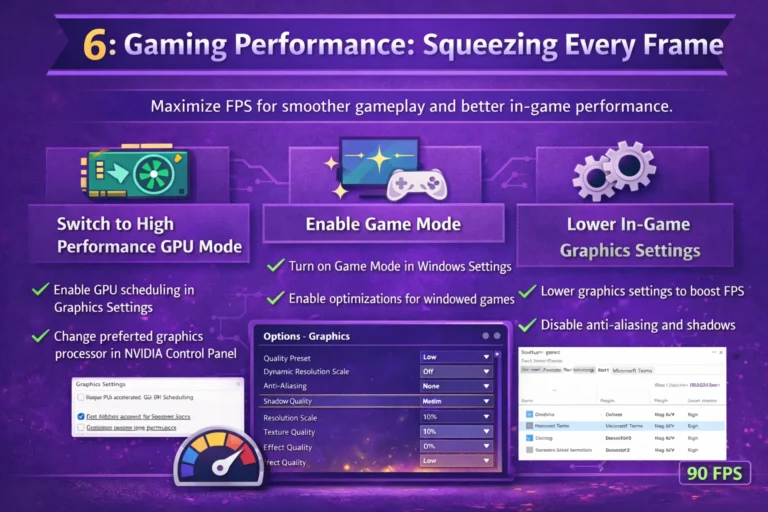
1-Switch to High Performance GPU Mode
- Open Settings > Display > Graphics.
- Click on your game’s executable and set it to High performance.
- If you have NVIDIA, open NVIDIA Control Panel > Manage 3D Settings and set your GPU.
2-Enable Game Mode
- Go to Settings > Gaming > Game Mode.
- Toggle Game Mode on to prioritize resources for your game.
3-Lower In-Game Graphics Settings
- Drop resolution from 1080p to 900p or 720p.
- Turn off Ray Tracing and Ambient Occlusion.
- Set Shadow Quality to Medium or Low.
7: Breathing Life Into an Old Laptop
1-Clean Dust
Dust in cooling vents / fan causes the processor to overheat and impact performance.
2-Safety note: Always power off and unplug your laptop before cleaning. Hold the fan in place when blasting compressed air.
3-Add More RAM
Upgrading to 8GB or 16GB on older laptops and costs Rs 4000-Rs 5000.
4-Do a Clean Windows Install
- Download the Windows Media Creation Tool from Microsoft’s website.
- Create a bootable USB drive.
- Boot from the USB and choose Custom: Install Windows only (advanced).
- Delete all existing partitions and install fresh.
8: Brand-Specific Tips
1-HP Laptops
- Uninstall HP Support Assistant, as it runs constant background scans.
- Use HP CoolSense wisely, disable it when plugged in to avoid throttling.
2-Dell Laptops
- Dell SupportAssist is heavy background application. Disable it.
- Use Dell Power Manager to set performance mode to ‘Ultra Performance’ when plugged in.
3-Lenovo Laptops
- Open Lenovo Vantage and set the power plan to ‘Performance Mode’.
- For ThinkPads, Fan Control in Vantage can help prevent thermal throttling.
4-Acer Laptops
- Check performance mode settings in Nitro Sense or Acer Care Center.
- Use Acer’s official driver update page to get the latest chipset and graphics drivers.
9: How to Keep Your Laptop Fast Long-Term
- Restart at least once a week: Regularly restart your laptop at least 2-3 times a week.
- Keep Windows Updated: Schedule updates outside of your working hours
- Watch what you install: Free software often included toolbars, adware, and other malware items.
- Use one antivirus, not two: Windows Defender is good enough
- Keep at least 15% of your drive free: Clean up files if you’re approaching that limit.
Quick Reference: What Problem, What Fix
Symptom | Most Likely Cause | Best First Fix |
Slow startup / long boot time | Too many startup programs | Disable startup apps in Task Manager |
Sluggish all the time | Low RAM or full hard drive | Free up disk space; consider RAM upgrade |
Fast at first, slow after an hour | Thermal throttling / overheating | Clean vents with compressed air |
Slow internet in browser | DNS or outdated Wi-Fi driver | Change to Cloudflare DNS (1.1.1.1) |
Games lag or stutter | Integrated GPU being used | Set game to use dedicated GPU |
Everything slow on old laptop | HDD bottleneck | Upgrade to SSD (biggest impact) |
Slow after Windows update | Update still indexing in background | Wait 30 min, then restart |

Final Thoughts
A slow laptop is frustrating, but rarely a death sentence. Majority of speed issues come down to software bloat, bad settings, and a bit of digital clutter. Before spending money on a new machine, work through this guide. You might be surprised.
The goal isn’t a perfect machine. It’s a machine that gets out of your way and lets you do the thing you actually sat down to do. Good luck!
FAQs:
A laptop can become slow due to too many startup programs, low storage space, outdated software, malware, or insufficient RAM.
You can speed up your laptop by disabling unnecessary startup apps, deleting junk files, uninstalling unused programs, and restarting your system regularly.
Yes. Upgrading from an HDD to an SSD can significantly improve boot time, application loading speed, and overall system performance.
It is recommended to clean temporary and junk files at least once every month to maintain smooth performance.
Yes. Having too many installed programs or apps running in the background can consume system resources and make your laptop slower.
If your laptop still feels slow after optimizing software and cleaning files, upgrading hardware such as RAM or switching to an SSD can improve performance.
