




Blogs
How to Speed Up Your Laptop: 10 Proven Fixes That Actually Work (2026)

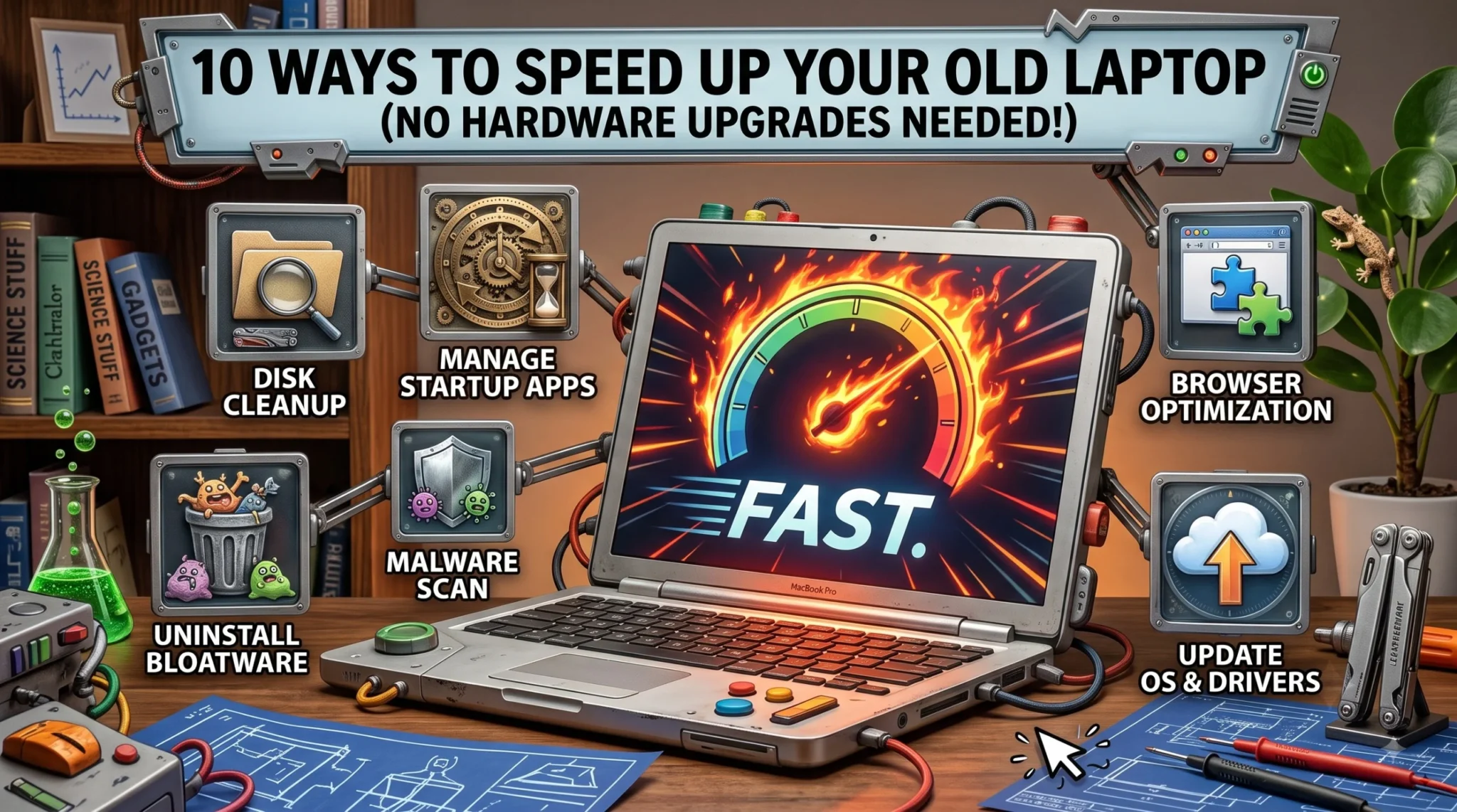
You can speed up an older laptop without upgrading hardware by removing software bloat rather than replacing parts. Here are the highest-impact fixes, all free.
You can speed up an older laptop without upgrading hardware by removing software bloat rather than replacing parts. The highest-impact free fixes are disabling unnecessary startup programs, freeing storage so the drive stays below 85–90% capacity, scanning for malware and background processes, reducing visual effects, and updating drivers and Windows. Most laptops that feel slow after two years have not lost hardware performance; they have accumulated startup apps, browser extensions, background sync clients, and dust in the fans. In 2026, installing the June 2026 Windows update (KB5094126) or later adds a genuine scheduling improvement on version 24H2 and 25H2. If performance is still limited after all ten fixes below, the laptop is likely hardware-constrained and a RAM or SSD upgrade is the next step.
Before you assume your laptop needs new hardware, it's worth ruling out the software clutter that's actually slowing it down. Most ways to speed up an older laptop cost nothing.
A laptop that felt fast on day one and feels sluggish two years later usually hasn't lost hardware performance; it's accumulated software bloat. These ten steps, in rough order of impact, can meaningfully speed up an older laptop for free.
The 10 Fixes
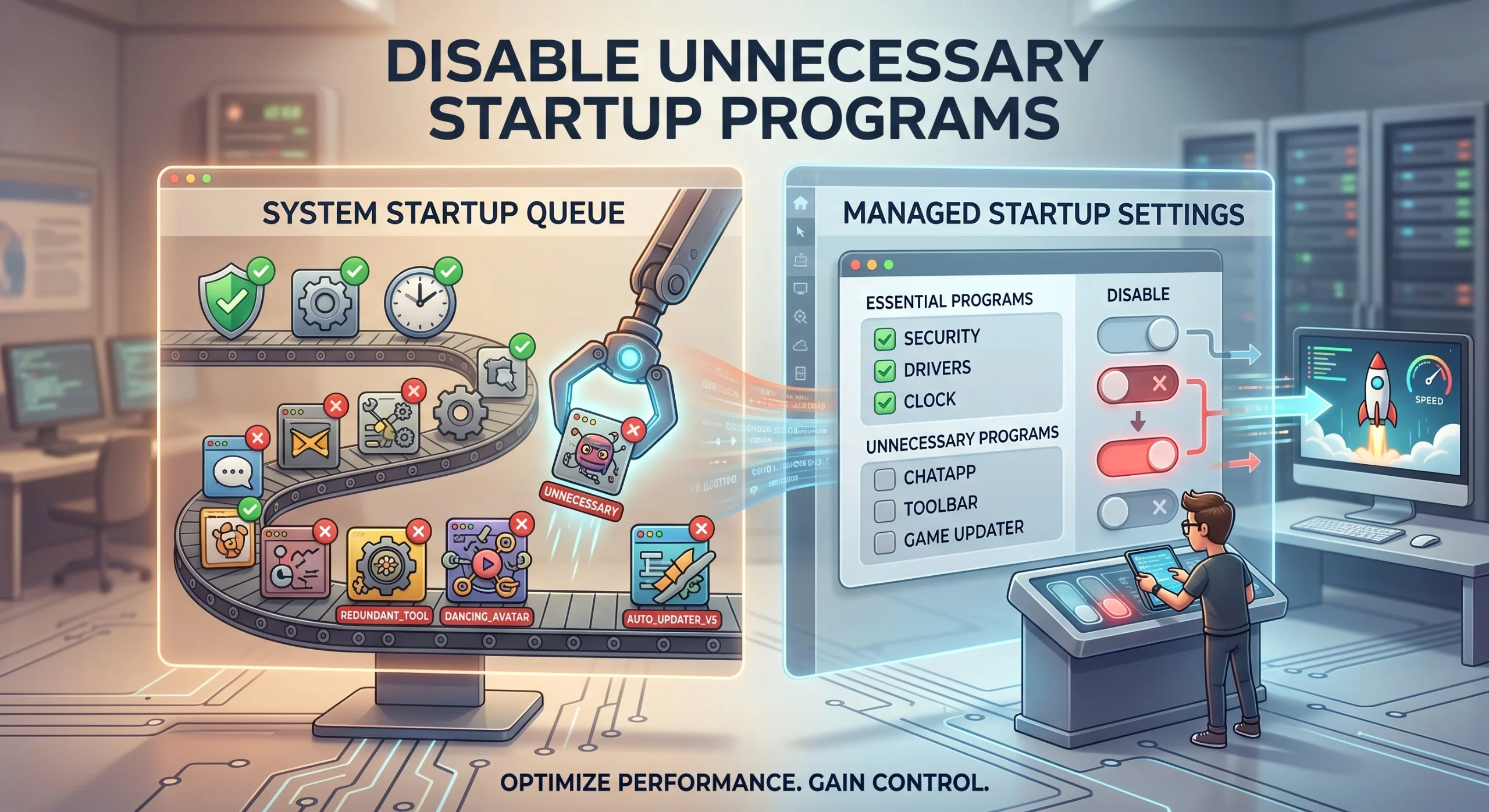
1 Disable Unnecessary Startup Programs
Apps that launch automatically at boot are one of the most common causes of a slow-feeling laptop. Review and disable ones you don't need running constantly. On Windows, you'll find the full list under Task Manager > Startup Apps, which even shows you each program's measured impact on boot time. It's common to find five or six apps quietly launching that you didn't even realize were set to run automatically: chat apps, printer utilities, and update checkers. Disabling the ones you don't open daily won't uninstall them; it just stops them from loading before you've asked for them.
2 Free Up Storage Space
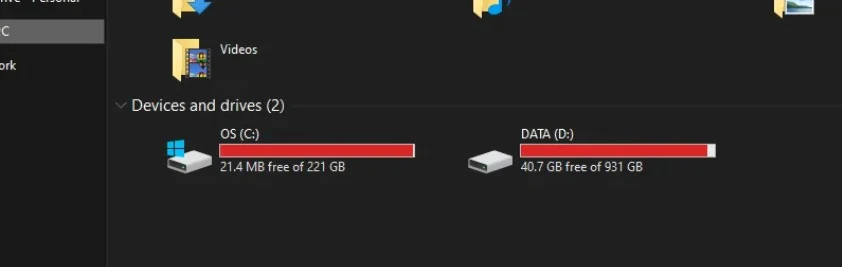
A drive running above roughly 85–90% capacity slows down noticeably, especially on SSDs. Clear unused files, uninstall unused apps, and offload large media to external storage. This happens because SSDs need free blocks to write to efficiently, and a nearly full drive forces the controller to work harder to find space, which shows up as slower file saves and app launches. Start with the biggest wins: old download folders, duplicate photo backups, and apps you installed once and forgot about tend to reclaim the most space with the least effort.
3 Check for Malware or Unwanted Background Processes
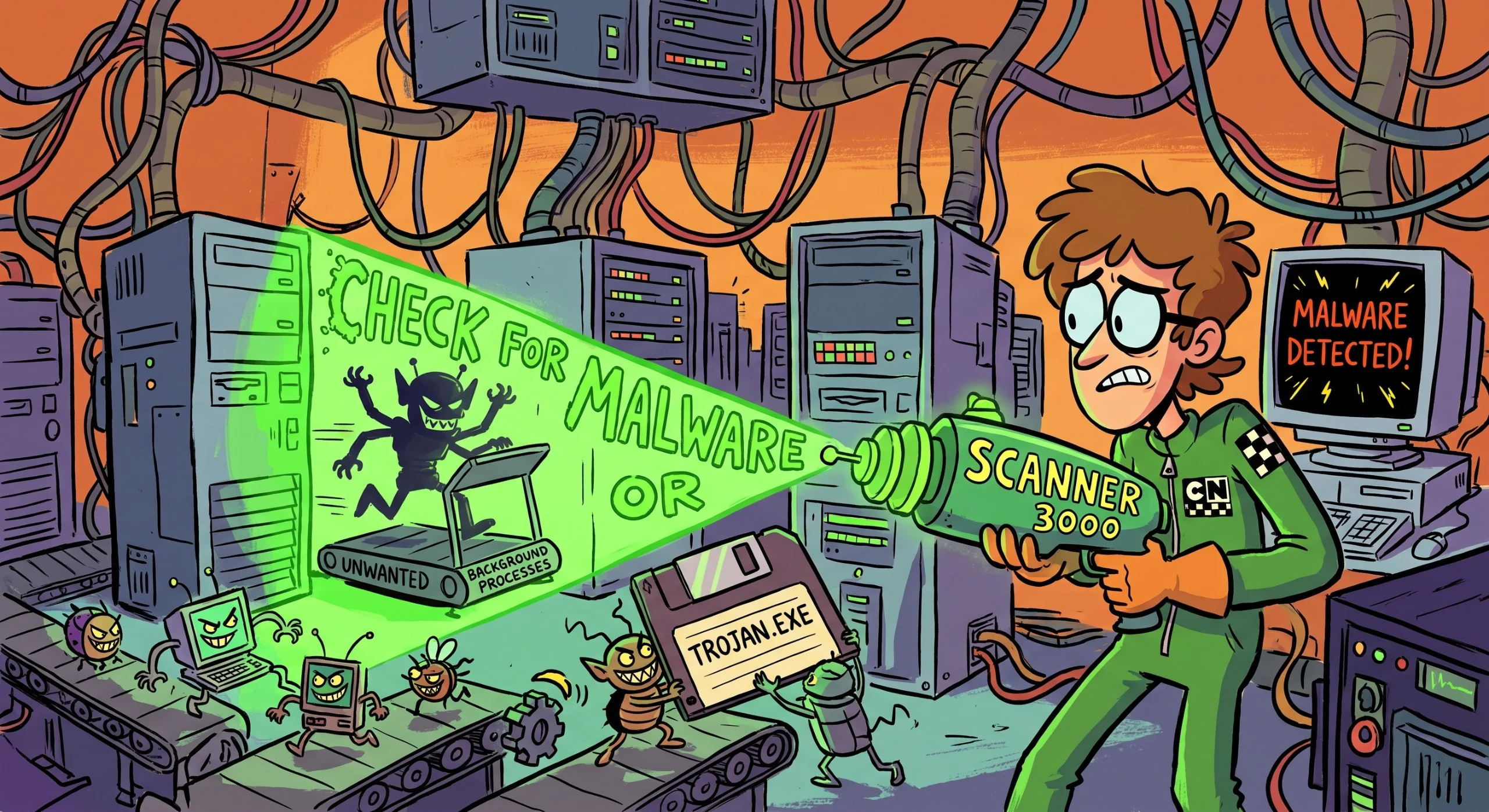
Run a reputable malware scan, while unwanted processes are a common, often overlooked drain on performance. Adware and bundled "helper" applications that sneak in with free software installs are especially common culprits, quietly using CPU and network bandwidth in the background without any visible window. A quick way to spot suspicious activity is to open Task Manager and sort by CPU or memory usage while the laptop is otherwise idle. Anything unfamiliar consuming resources with nothing open is worth investigating.
4 Reduce Visual Effects and Animations
Disabling transparency effects, animations, and visual flourishes frees up resources on lower-power hardware. These effects lean on the graphics processor, which on older or integrated GPUs is often the weakest link in the system. On Windows, searching "adjust the appearance and performance of Windows" and selecting "Adjust for best performance" turns most of these off in one step, though you can also pick and choose individual effects to keep if you want a middle ground between speed and polish.
5 Update Drivers and OS
Outdated drivers, especially graphics and chipset drivers, can cause both slowdowns and stability issues. This one is worth a closer look right now, because it's actually a better piece of advice in 2026 than it's been in years. If your laptop is running Windows 11 version 24H2 or 25H2 and you haven't installed the June 2026 update (KB5094126) or later, you're leaving free performance on the table.
Looking further ahead, Windows 11's 2026 Update (version 26H2) is rebuilding parts of the shell, start menu, File Explorer, and taskbar on a different underlying framework specifically to improve stability and responsiveness. In practical terms, that means some of the sluggishness people associate with "Windows just feeling slow" is being addressed at the OS level, not just through settings tweaks. It's a good reason to keep Windows updated rather than assuming an older laptop can't benefit from newer software.
6 Limit Browser Tabs and Extensions
Modern browsers are memory-hungry; each open tab and active extension consumes RAM continuously. It's easy to end up with dozens of tabs open "just in case," and each one keeps running scripts and holding memory even if you never look at it again. Bookmarking tabs you want to save for later instead of leaving them open, and periodically auditing your extensions list for ones you no longer use, can free up a surprising amount of RAM on laptops with 8GB or less.
7 Run Disk Cleanup / Storage Optimization Tools
Built-in OS tools can clear temporary files, old system logs, and cached data that accumulate over time. On Windows, the built-in "Disk Cleanup" or the newer Storage Sense feature (Settings > System > Storage) can automate this so it runs on a schedule instead of relying on you to remember. It's a lower-impact step than reducing startup apps, but it's genuinely free and takes only a couple of minutes to set up once.
8 Check for Excessive Background Sync Services
Cloud storage sync clients, backup tools, and update services running consistently in the background can meaningfully affect responsiveness. It's common to have two or three of these running at once, let's say, OneDrive, a photo backup app, and a game launcher's auto-updater, with each periodically spiking CPU and disk usage without any obvious sign of what's causing it. Pausing sync during active work sessions, or switching sync frequency from "continuous" to a scheduled interval, keeps the convenience while cutting the constant background load.
9 Reset or Reinstall the OS if Bloat Has Built Up Over Years
For a laptop that's accumulated years of installed software, a clean OS reinstall often restores much of its original responsiveness. Over time, registry entries, leftover files from uninstalled programs, and conflicting driver versions pile up in ways that individual cleanup steps can't fully undo. This is the most drastic fix on this list, so it's worth trying everything above first, but if the laptop still feels sluggish after that, a reset is often the closest thing to a factory-fresh experience without buying new hardware.
10 Physically Clean Dust from Vents and Fans
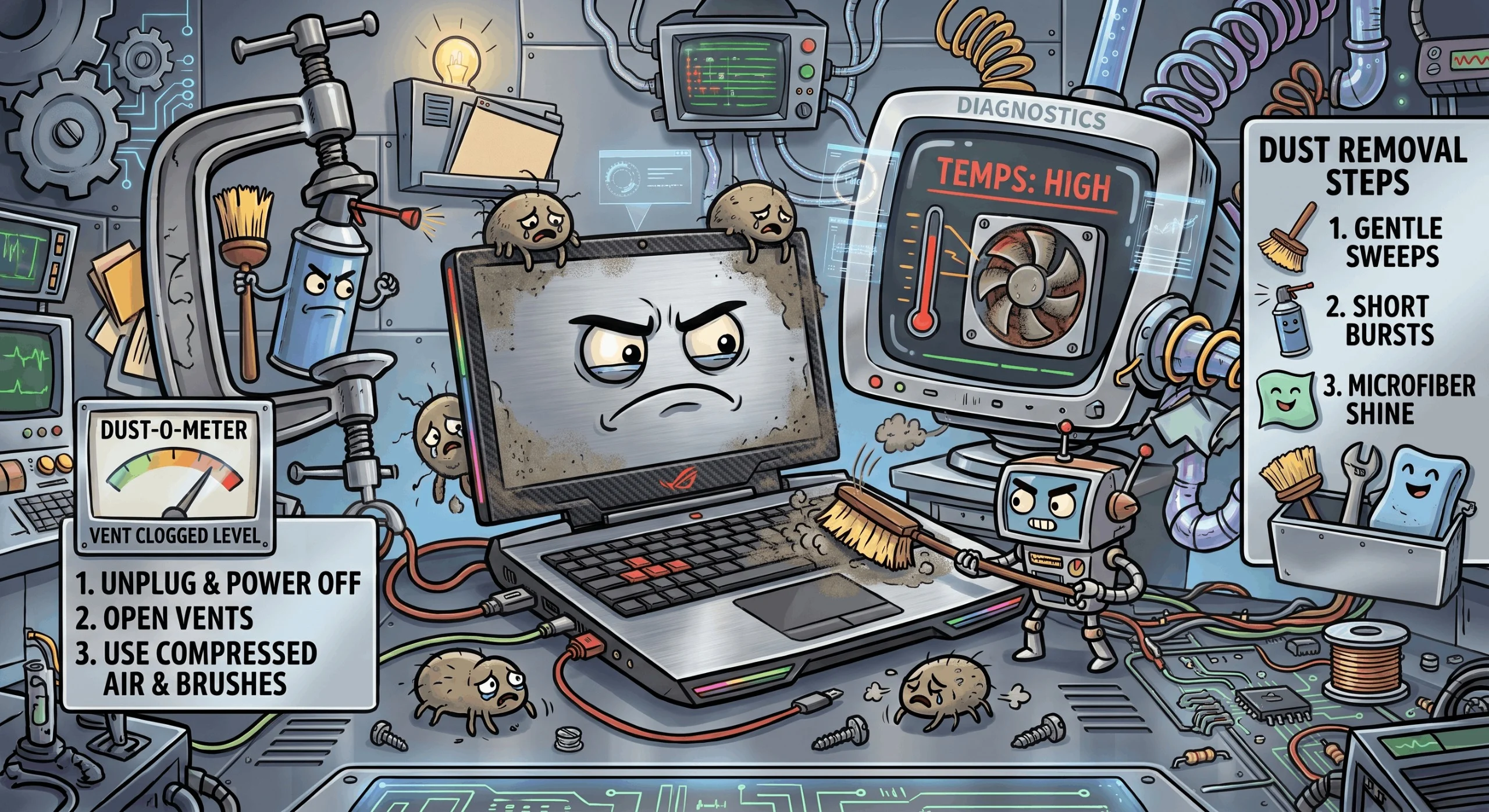
Dust buildup restricts airflow, causing the CPU to run hotter and throttle performance to manage heat. A physical clean can meaningfully help older laptops. A can of compressed air aimed at the vents, done with the laptop powered off, is usually enough to clear the worst of it without opening the case. If the laptop is a couple of years old and you've never cleaned it, this step alone can sometimes explain a slowdown that looks like a software problem but is actually the fans struggling to keep up.
Brand-Specific Tip
Most laptop makers ship their own control utility, and it's usually the fastest way to handle two of the steps above at once. These utilities all check for OEM-specific driver and firmware updates that Windows Update often misses, and most of them also expose a thermal or power mode, letting you switch from a quiet or battery-saver profile to a performance one.
The flip side is that these same brands preload the heaviest bloatware: trial antivirus, media suites, and duplicate update checkers you can safely uninstall. Keep the one official support utility, remove the rest, and check the manufacturer's own support page for your exact model number, since driver packages there are frequently newer than anything Windows offers.
Frequently Asked Questions
About 30 to 45 minutes for the software fixes. Disabling startup programs, reducing visual effects, and auditing browser extensions take roughly five minutes each and deliver most of the improvement, usually noticeable on the next reboot. A malware scan runs 20 to 60 minutes in the background, and a physical dust clean takes about 10 minutes. A full OS reinstall is the exception, requiring two to four hours including reinstalling your apps.
Yes. A clean reinstall erases the drive, including your personal files, so back up anything important before you start. Windows offers a "Reset this PC" option with a "Keep my files" setting that preserves documents and photos while removing installed apps and settings, which is the safer choice if you don't want a full wipe.
Every three to four months. A light cleanup means reviewing startup programs, clearing temporary files, and checking storage space, which takes about 15 minutes. A physical dust clean is worth doing once or twice a year, and a full OS reinstall is an as-needed step rather than a scheduled one, typically every three to four years or when nothing else restores performance.
Only if RAM is the actual bottleneck. Open Task Manager and check memory usage during normal work: if it sits above 80% with only a few apps open, more RAM will help, and 8GB systems benefit most. If memory usage is comfortable and the slowdown is in boot times, file saves, or general responsiveness, the cause is more likely startup programs, a nearly full drive, or thermal throttling, and adding RAM changes nothing.
Yes. Dust buildup in a laptop's vents and fans restricts airflow, which raises internal temperatures and triggers thermal throttling, a protective mechanism where the CPU deliberately reduces its clock speed to avoid overheating. The result is slower performance that looks like a software problem but is entirely physical, and it is often fixed with a few minutes of compressed air.
Replacing a mechanical hard drive with an SSD. On a laptop still running an HDD, this is the one change that transforms everyday responsiveness, cutting boot times and app launches from tens of seconds to a few. If the laptop already has an SSD, no single hardware change comes close, and the software fixes above are where the remaining performance is.
Both, but a minority of updates genuinely improve speed. Most feature updates add functionality you may never use; a smaller number target performance directly. The June 2026 update's Low Latency Profile is a good example; it's a CPU scheduling change aimed squarely at making everyday interactions (opening menus, launching apps) feel snappier, not a new feature you have to learn. If your laptop is on version 24H2 or 25H2, checking Settings > Windows Update for the latest cumulative update is a legitimate, free performance step, not just routine maintenance.
Generally, no. Built-in tools such as Disk Cleanup, Storage Sense, and Task Manager's startup list do the same work without cost or risk. Most commercial optimizers charge for registry cleaning, which delivers no measurable speed benefit on modern Windows, and many add their own background process, making the laptop slower than before. The exception is your manufacturer's official support utility, which handles driver and firmware updates Windows Update often misses.


