




Blogs
20 macOS Tips Every New MacBook Owner Must Know (2026)

From the screenshot shortcut to Siri AI, here are the macOS 27 Golden Gate tips that make a MacBook feel like yours within a month, not a year.
Quick answer: The most useful macOS tips for a new MacBook owner are the screenshot shortcut (Cmd + Shift + 5), Spotlight (Cmd + Space), Time Machine backups, trackpad gestures and Force Quit (Cmd + Option + Esc). As of November 12, 2026, the latest version is macOS 27 Golden Gate, and it needs an Apple silicon Mac.
Key facts
- Latest macOS: macOS 27 Golden Gate, released September 14, 2026. The newest public update is 27.2.1 (November 9, 2026).
- Supported Macs: Apple silicon Macs (M1 and later, from 2020) and the MacBook Neo. Intel Macs top out at macOS 26 Tahoe.
- Siri AI: the new conversational Siri, built into Spotlight. It is still a beta and needs an Apple Intelligence-capable Mac.
- Rosetta: macOS 27 is the last version with general Rosetta support for Intel-only apps.
- Last reviewed: November 12, 2026.
If you've just moved over from Windows, your first hour on a MacBook probably went something like this: you looked for the snipping tool, tried to right-click, couldn't find a Task Manager, and quietly wondered what you'd signed up for.
Don't worry. macOS does things differently, but once you know where the good stuff is hiding, it's hard to go back. We've updated this guide for the latest release, macOS 27 Golden Gate, which arrived on September 14, 2026. Some tips are classics that haven't changed in years. Others are brand new this year.
Try one or two a day. By the end of the month, you'll be moving around your Mac like you've owned it for years.
What's in this guide
- How do I check which macOS version my MacBook is running?
- How do I take a screenshot on a Mac?
- How do I use AirDrop on a Mac?
- How do I set up Touch ID on a MacBook?
- How do I back up a MacBook with Time Machine?
- What can Spotlight do on a Mac?
- What is Siri AI, and which Macs support it?
- How do I set up Hot Corners on a Mac?
- What are the most useful MacBook trackpad gestures?
- How do I split the screen on a Mac?
- How do I use Focus mode on a Mac?
- How do I preview a file on a Mac without opening it?
- How do I force quit an app on a Mac?
- How do I find out what's slowing down my Mac?
- How do I show hidden files on a Mac?
- How do I stop my Mac from going to sleep?
- What's new in Safari on macOS 27?
- How do I connect my iPhone to my MacBook?
- Does a Mac have a built-in password manager?
- How can I improve MacBook battery life?
1. How do I check which macOS version my MacBook is running?
Click the Apple menu, choose About This Mac, and read the version number. The newest release is macOS 27 Golden Gate, and you can install updates under System Settings → General → Software Update.
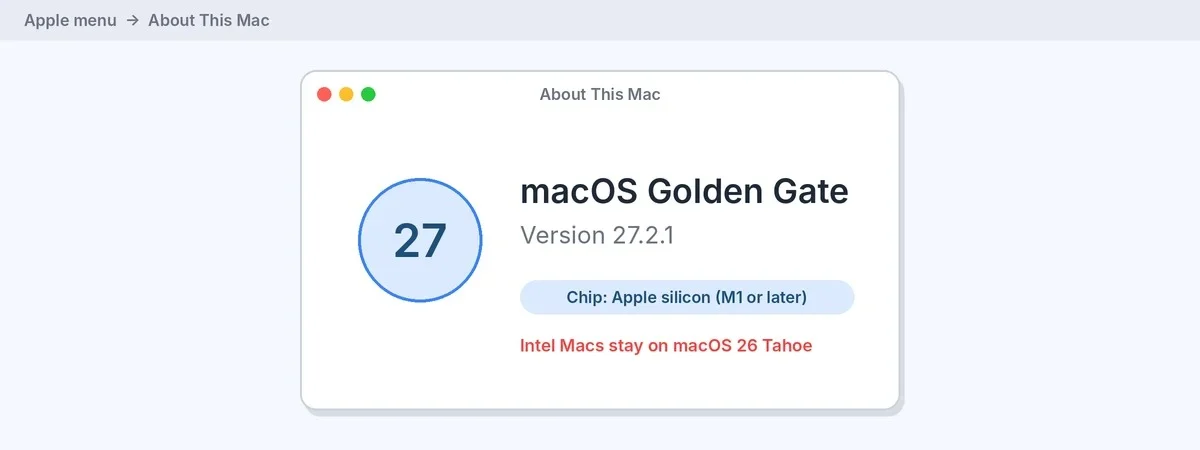
Before anything else, find out what you're running. Click the Apple menu, choose About This Mac, and look at the version number.
Here's the current picture. macOS 27 Golden Gate is the latest release, and as of this week the newest public update is 27.2.1, a security patch from November 9 that fixes issues in Messages, Bluetooth and AirPlay. To install it, go to System Settings → General → Software Update. Turn on automatic updates while you're there and you can stop thinking about it.
One thing worth knowing if you bought a used or refurbished MacBook: macOS 27 only runs on Apple silicon Macs (M1 and later, from 2020 onwards, plus the new MacBook Neo). Intel MacBooks stay on macOS 26 Tahoe, which was the last version for them. An Intel MacBook still works fine for everyday tasks, but it won't get Apple Intelligence or Siri AI, and it will eventually stop getting new features. If you're still shopping, an M1 or newer model is the safer long-term bet.
Which Macs can run macOS 27?
| Mac | Runs macOS 27? | Apple Intelligence and Siri AI |
|---|---|---|
| MacBook Neo (2026) | Yes | Yes |
| MacBook Air or MacBook Pro with Apple silicon (2020 and later) | Yes | Yes; the most advanced Siri AI features need an M3 or later with 12 GB of memory |
| Any Intel MacBook | No, stays on macOS 26 Tahoe | No |
Also, Golden Gate is described as the final macOS version to support Rosetta, the layer that lets old Intel-only apps run on Apple silicon. If you rely on an older app, check that its developer has released an Apple silicon version. macOS 27 even includes a checker in System Settings that lists Intel-based apps you've used recently.
2. How do I take a screenshot on a Mac?
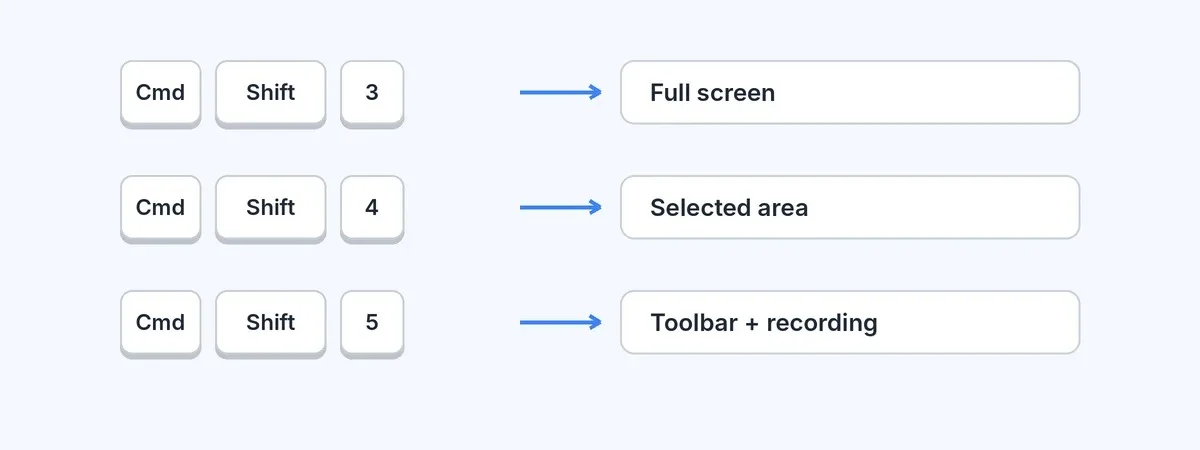
Press Cmd + Shift + 3 for the full screen, Cmd + Shift + 4 to select an area, or Cmd + Shift + 5 to open the screenshot toolbar with recording options. Screenshots save to your desktop as PNG files.
The number one search from new Mac users is "where is the snipping tool?" There isn't a separate app. It's built into the keyboard.
- Cmd + Shift + 3 captures the whole screen.
- Cmd + Shift + 4 gives you a crosshair so you can drag over just the part you want.
- Cmd + Shift + 4, then Space turns the cursor into a camera. Click any window to capture it cleanly, shadow and all.
- Cmd + Shift + 5 opens the full toolbar, with options for screen recording (with or without microphone audio), a timer and a choice of where files get saved.
After you take a screenshot, a small thumbnail floats in the bottom-right corner. Click it to crop or mark it up before it saves, or just ignore it and it lands on your desktop.
Bonus trick: add Control to any of the shortcuts (for example Cmd + Control + Shift + 4) and the screenshot is copied to your clipboard instead of saved as a file. Perfect for pasting straight into an email or chat.
3. How do I use AirDrop on a Mac?
Right-click a file, choose Share → AirDrop, then pick the nearby device. To receive files, open Finder → AirDrop and set your discoverability to Contacts Only or Everyone for 10 Minutes.
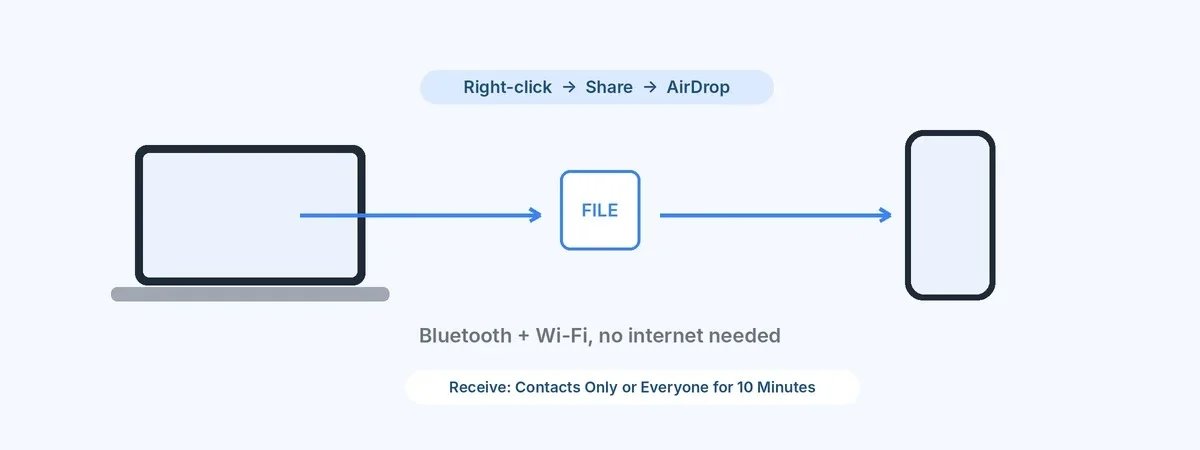
If you also own an iPhone or iPad, AirDrop is one of the best reasons to be on a Mac. It sends files directly between nearby Apple devices over Bluetooth and Wi-Fi, with no internet connection needed and no meaningful file size limit. Apple says AirDrop got faster in macOS 27, too.
To send: right-click a file, choose Share → AirDrop, and pick the recipient's name.
To receive: open Finder and click AirDrop in the sidebar. Set "Allow me to be discovered by" to Contacts Only or Everyone for 10 Minutes. Incoming files land in Downloads.
If a device refuses to show up, make sure both have Wi-Fi and Bluetooth on and that neither is in a restrictive mode like Personal Hotspot. Also keep the screens awake. AirDrop is fussy about sleeping devices.
4. How do I set up Touch ID on a MacBook?
Open System Settings → Touch ID & Password, click Add Fingerprint and follow the prompts. You can store up to three fingerprints per user account.
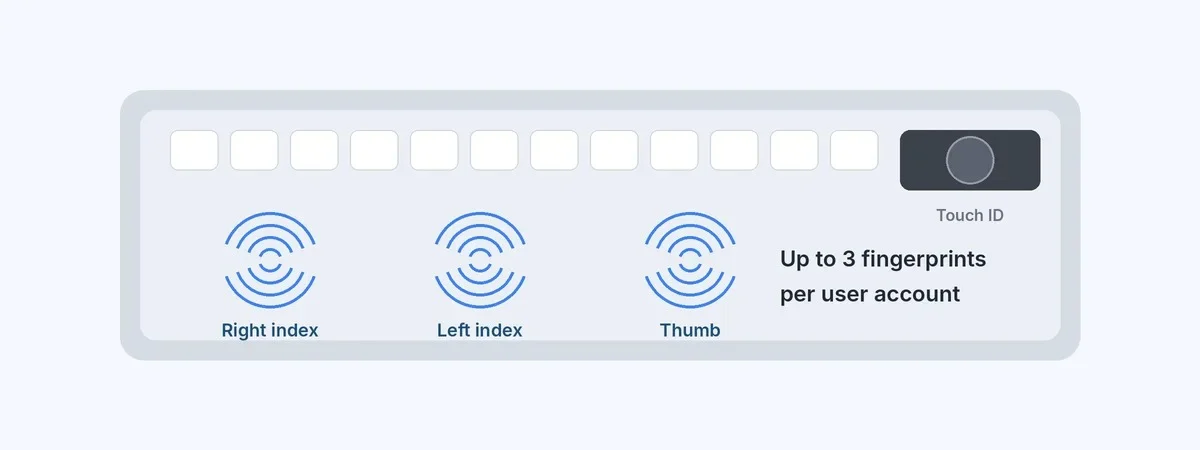
If your MacBook has a Touch ID sensor, spend two minutes on it. Go to System Settings → Touch ID & Password and add your fingerprints. A good combination is both index fingers and one thumb.
Touch ID isn't just for unlocking the lid. It also works for:
- Approving App Store downloads and purchases
- Filling in saved passwords in Safari and other apps
- Unlocking protected settings and approving admin prompts
- Unlocking locked notes and apps that support it
It's faster than typing your password, and it's also safer, since nobody can peek over your shoulder at a fingerprint.
5. How do I back up a MacBook with Time Machine?
Connect an external drive, then go to System Settings → General → Time Machine → Add Backup Disk and select it. Backups then run automatically whenever the drive is connected.
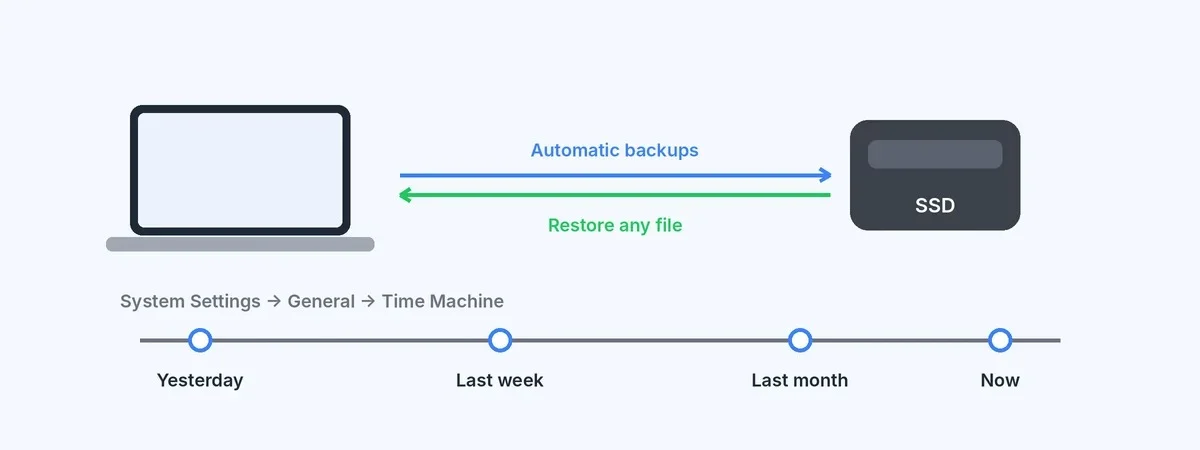
Time Machine is the built-in backup system, and it's the least exciting tip on this list that could save you the most heartache. It quietly keeps copies of your files so you can go back to how things looked yesterday, last week or last month.
Setting it up: plug in an external SSD or hard drive, then go to System Settings → General → Time Machine → Add Backup Disk. Apple suggests a drive with at least twice your Mac's storage. After that, backups happen on their own whenever the drive is connected. You can also back up over your network to a compatible NAS if you have one.
Restoring a file: open the folder where the file used to live, launch Time Machine (search for it in Spotlight, or use its menu bar icon if you've switched that on), and scroll back through the timeline until you find what you need. Click Restore and it returns to where it was.
A decent 1 TB portable SSD costs a few thousand rupees in India (prices move around, so check before you buy). That's a small price compared with losing years of photos or a college project.
One common mix-up: iCloud syncs your files across devices, but it isn't a true backup. If you delete something, it can disappear everywhere. Time Machine is your safety net.
6. What can Spotlight do on a Mac?
Spotlight, opened with Cmd + Space, launches apps, finds files by name or content, does maths and unit conversions, shows clipboard history and runs quick actions. On macOS 27 it also answers questions through Siri AI.
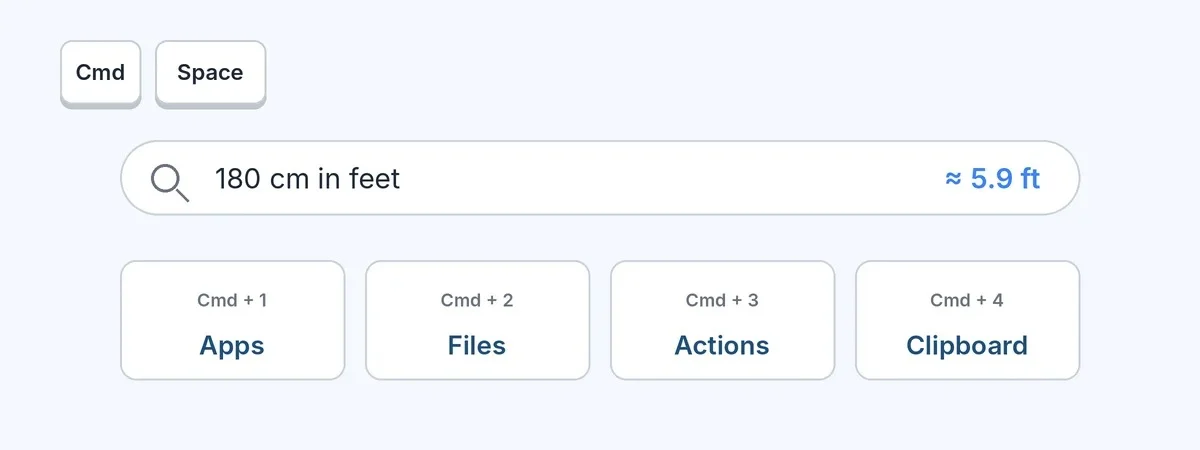
Press Cmd + Space and Spotlight opens. Most people use it to launch apps, which is handy, but it can do a lot more:
- Quick maths and conversions: type "25 USD in INR" or "180 cm in feet" and get the answer instantly.
- Find files by what's inside them: search for a phrase from a document, not just its name.
- Preview results: select a result to see a preview without opening anything.
- Browse by category: since macOS 26 Tahoe, Spotlight has dedicated views you can jump to with Cmd + 1 (apps), Cmd + 2 (files), Cmd + 3 (actions) and Cmd + 4 (clipboard history).
- Clipboard history: that Cmd + 4 view keeps a short list of things you recently copied, so you don't lose that link you copied five minutes ago.
- Actions: you can do things like create a reminder or send a message right from the Spotlight bar.
A small change that matters for Windows switchers: the old Launchpad is gone in recent versions of macOS. The Apps view in Spotlight (Cmd + Space, then Cmd + 1) replaces it.
Apple also rebuilt Spotlight's search index in macOS 27, so searches should feel quicker and more consistent than before.
7. What is Siri AI, and which Macs support it?
Siri AI is the redesigned, conversational Siri in macOS 27, powered by Apple Intelligence. It runs on Macs that support Apple Intelligence, but the most advanced features need an M3 or later with at least 12 GB of memory. It is still labeled a beta.
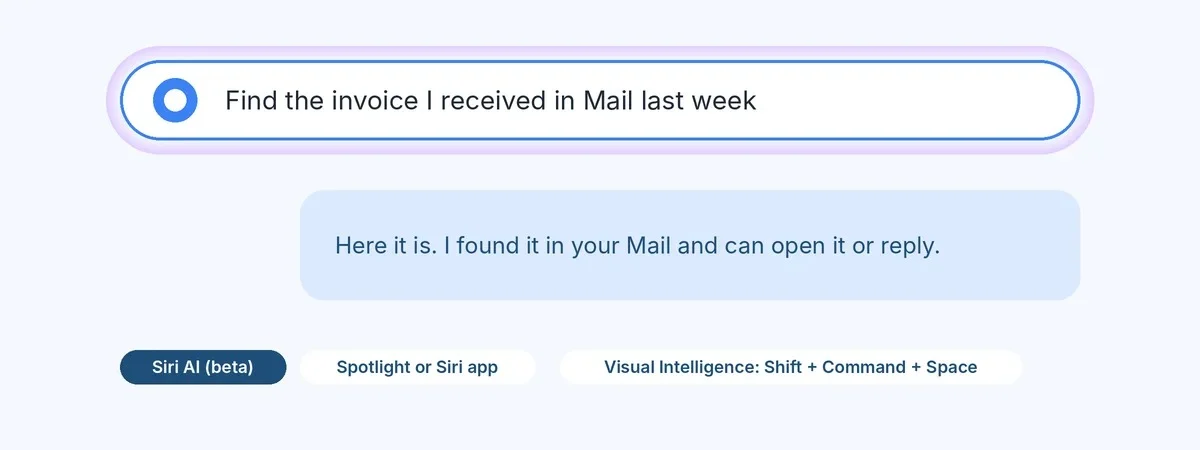
This is the biggest headline feature in macOS 27, and it's very different from the Siri you might remember. Siri AI is a conversational assistant. You can ask it open-ended questions, follow up naturally, have it look through your Messages, Mail, Notes and files for something you half-remember, and ask it to do things across apps like Calendar, Reminders and Maps.
You can reach it through the new standalone Siri app or straight from Spotlight by typing a question. macOS 27 also brings Visual Intelligence to the Mac, so Siri can understand what's on your screen.
Visual Intelligence has its own keyboard shortcut, Shift + Command + Space bar. Siri AI is rolling out gradually, so if you don't see it, turn it on in System Settings and check Apple's feature availability page for your region.
A few honest caveats:
- It's still labeled a beta, so expect some rough edges.
- You need a Mac that supports Apple Intelligence. Siri's most advanced features (the biggest on-device model, expressive voices and advanced dictation) need an M3 or later with at least 12 GB of memory.
- Languages and regions vary. With macOS 27.2, Siri AI supports French, Japanese, Korean, Portuguese and Spanish alongside English, but availability differs by country. Check Apple's page for your region before assuming it's on.
- Privacy controls exist. macOS 27.2 added an Excluded Apps setting where you choose which apps Siri, Search and suggestions are allowed to look at.
8. How do I set up Hot Corners on a Mac?
Open System Settings → Desktop & Dock, scroll down, click Hot Corners, and choose an action for each corner of the screen.
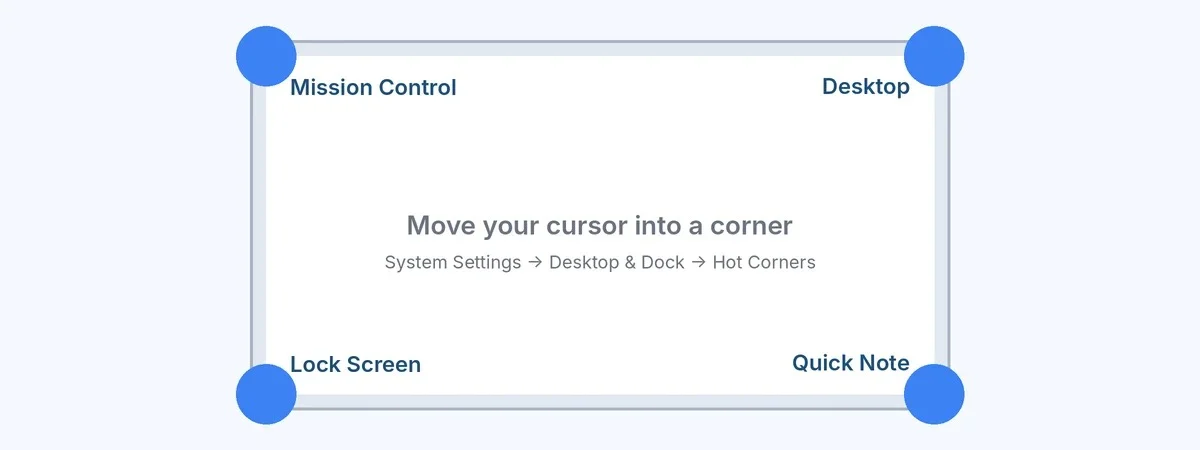
Hot Corners let you trigger an action by flicking your cursor into a corner of the screen. It sounds gimmicky, but it becomes second nature fast. A setup that works well for many people:
| Corner | Action | Why it's useful |
|---|---|---|
| Top-left | Mission Control | See every open window at once |
| Top-right | Desktop | Clear the clutter to reach your files |
| Bottom-left | Lock Screen | Lock up when you step away |
| Bottom-right | Quick Note | Jot something down without hunting for Notes |
If you keep triggering them by accident, hold Cmd or Option while picking the action. After that, the corner only works when you hold the same key as you move into it.
9. What are the most useful MacBook trackpad gestures?
The essentials are two-finger scroll, pinch to zoom, a two-finger tap for right-click, and a three- or four-finger swipe up for Mission Control. You can adjust them all in System Settings → Trackpad.
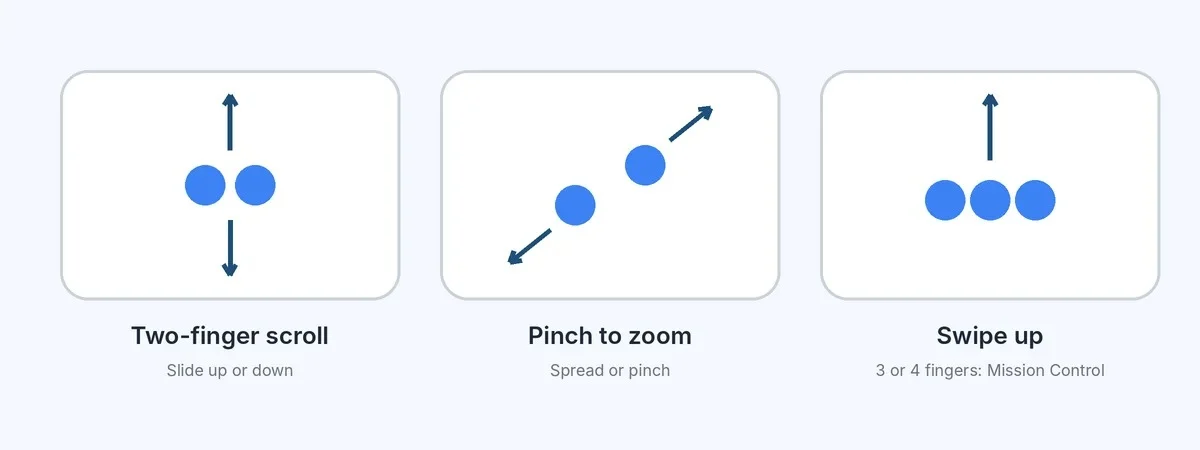
Apple's trackpads are famously good, and the gestures are a big reason why. The ones worth learning first:
- Two-finger scroll works pretty much everywhere.
- Pinch to zoom on photos, maps, PDFs and web pages, just like on a phone.
- Swipe up with three or four fingers opens Mission Control, your bird's-eye view of all windows and desktops.
- Swipe left or right with three or four fingers moves between full-screen apps and desktops.
- Two-finger tap is your right-click.
The exact finger count depends on your settings, so open System Settings → Trackpad → More Gestures and pick what feels natural. While you're in the Trackpad settings, switch on Tap to click if it's off. It saves a lot of physical clicking.
A small heads-up: a number of people have reported lag or black previews in Mission Control and Spaces after upgrading to macOS 27. If you notice it, install the latest update first. Apple is still releasing fixes.
If your MacBook is one of the new touchscreen MacBook Pro models, macOS 27 also supports direct touch for scrolling, pinching and dragging, alongside the trackpad and keyboard.
10. How do I split the screen on a Mac?
Hover over the green button at the top-left of a window and pick a tiling option, or drag the window to a screen edge. You can also hold Fn + Control and press an arrow key.
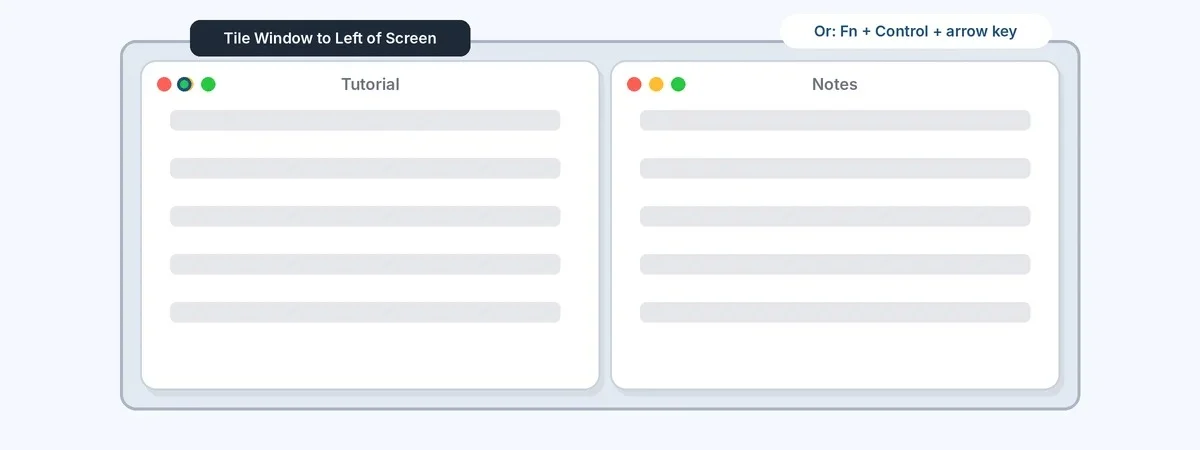
Windows users love Snap, and the Mac has a version of its own. Hover over the green button at the top-left of any window and you'll see options to fill the screen or tile the window to the left, right or into a corner. You can also drag a window to the edge of the screen to snap it into place, or use the keyboard shortcuts (hold Fn + Control and press an arrow key).
This is ideal for keeping a tutorial on one side and your work on the other, or a reference document next to the one you're writing.
11. How do I use Focus mode on a Mac?
Open System Settings → Focus, add a Focus such as Work or Sleep, and choose which people and apps can still send you notifications.
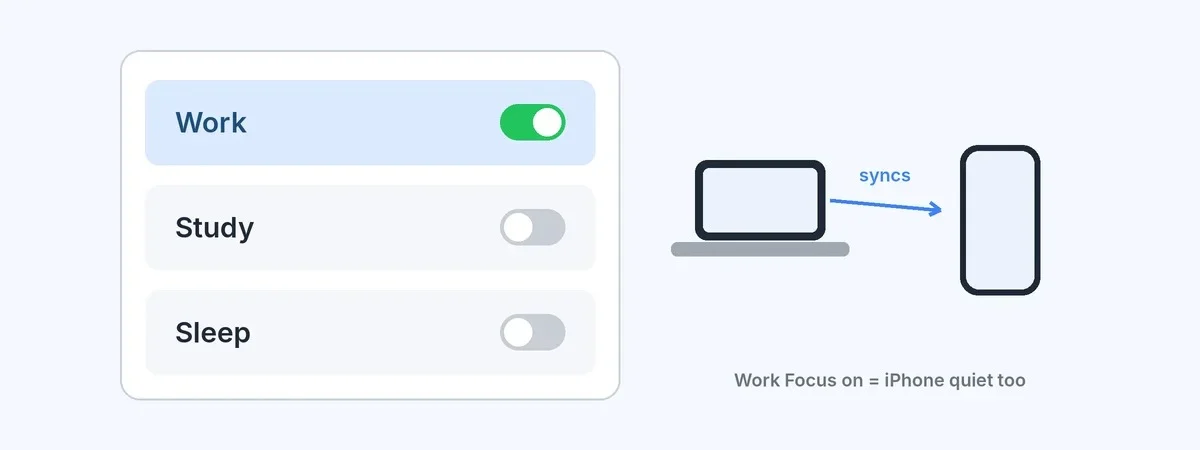
Focus lets you decide which apps and people can reach you at certain times. Open System Settings → Focus, add a Focus like Work, Study or Sleep, and choose which notifications can still get through.
The nice part is that it syncs with your other Apple devices by default. Turn on Work Focus on your MacBook and your iPhone goes quiet too. You can even set it to switch on automatically by time, location or app.
12. How do I preview a file on a Mac without opening it?
Select the file in Finder and press the Spacebar to open Quick Look. Press the Spacebar again to close it.
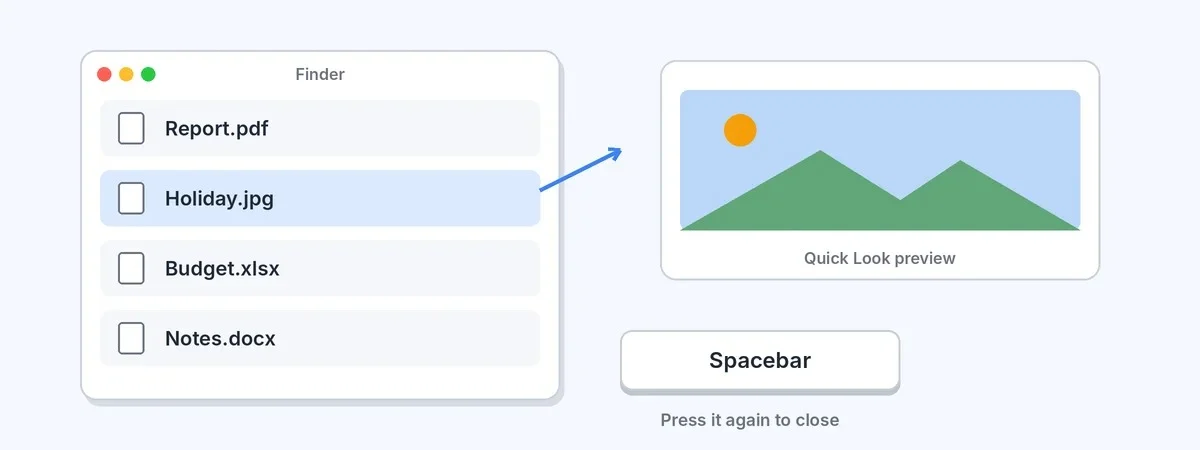
Select a file in Finder and tap the Spacebar. A preview pops up instantly, whether it's a photo, PDF, video, spreadsheet or document. Tap Space again to close it.
It's a tiny thing that saves you from opening a dozen apps just to see what's inside a file. You can also select several files and flip through them with the arrow keys.
13. How do I force quit an app on a Mac?
Press Cmd + Option + Esc, select the frozen app in the window that appears, and click Force Quit.
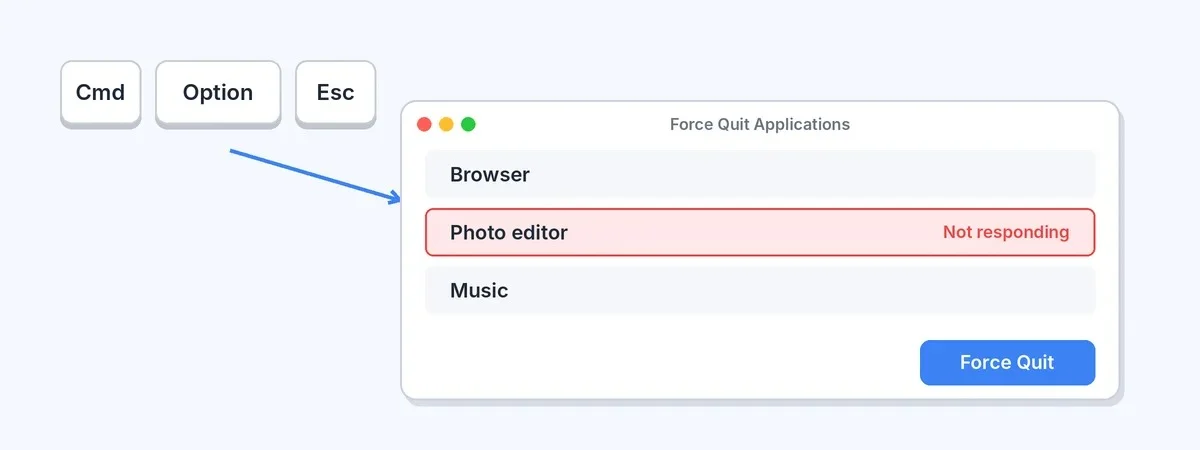
Every app freezes eventually. On a Mac the fix is Cmd + Option + Esc. A small window lists your running apps. Pick the stuck one and click Force Quit.
You can also hold Option and right-click an app's icon in the Dock, and "Quit" becomes "Force Quit." It's the Mac equivalent of Task Manager's End Task.
14. How do I find out what's slowing down my Mac?
Open Activity Monitor from Spotlight and check the CPU, Memory and Energy tabs. The app at the top of the list is usually the one using the most resources.
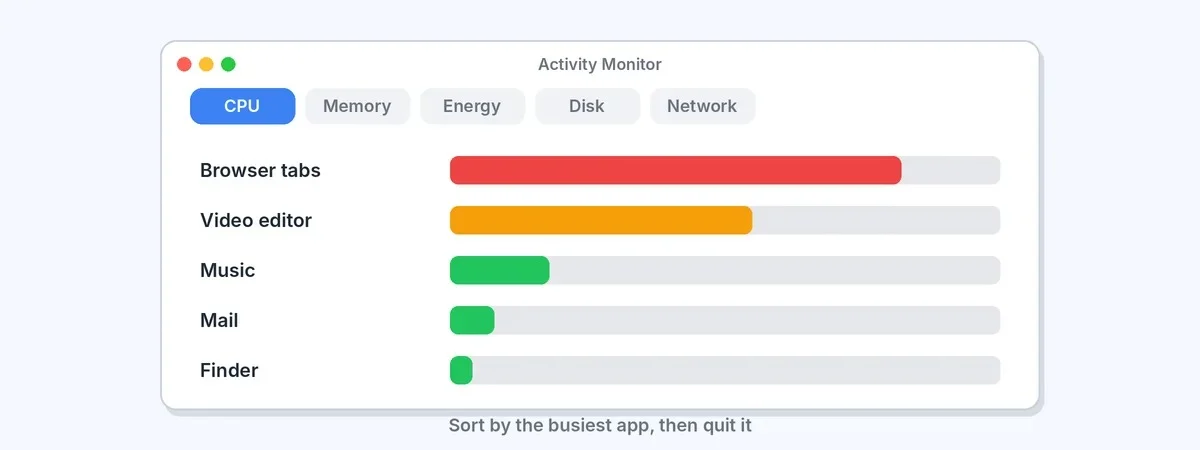
If your MacBook feels slow, runs warm or drains its battery quickly, open Activity Monitor (search for it in Spotlight). The CPU, Memory and Energy tabs show which apps are using the most resources. Nine times out of ten, one misbehaving app or browser tab is the culprit, and you can quit it right from there.
The Energy tab is especially useful if you're wondering why your battery is vanishing faster than usual.
15. How do I show hidden files on a Mac?
In Finder, press Cmd + Shift + . (period). Press the same keys again to hide them.
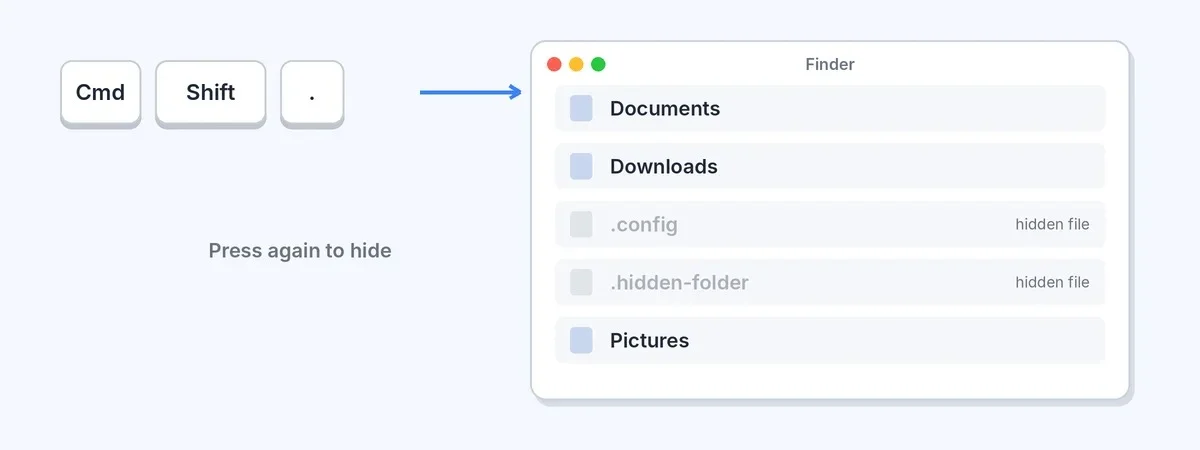
macOS hides certain files and folders by default. When you need to see them, open Finder and press Cmd + Shift + . (that's the period key). Hidden items appear slightly faded. Press it again to hide them.
Handy for developers, anyone troubleshooting an app, or when a guide tells you to look in a folder you can't find.
16. How do I stop my Mac from going to sleep?
Open Terminal and run caffeinate -t 3600 to keep your Mac awake for one hour. Press Control + C to stop it early.
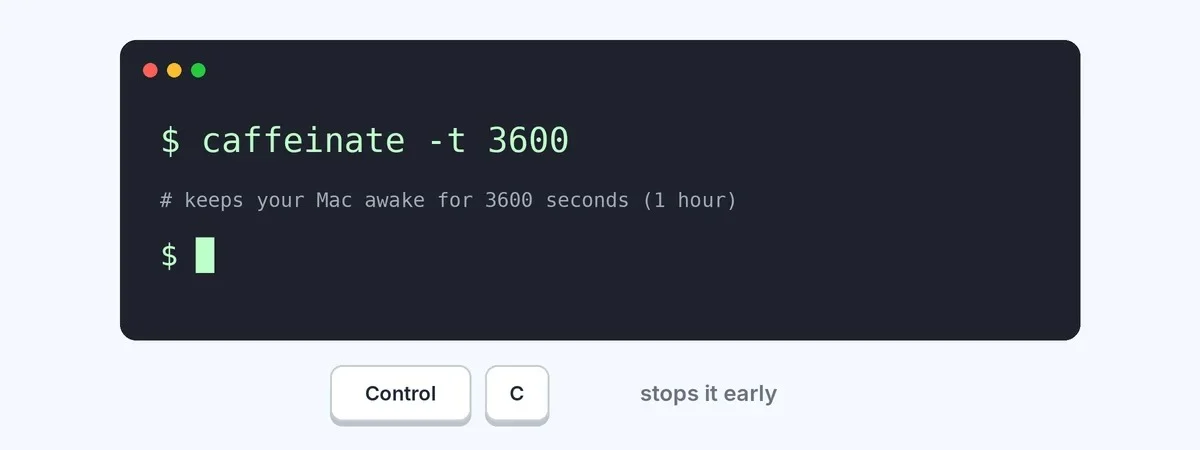
Want your Mac to stay awake during a long download, a big file transfer or a presentation? Open Terminal (search for it in Spotlight) and type:
That keeps the Mac awake for 3600 seconds, which is one hour. Change the number for a longer or shorter time. To stop it early, press Control + C. Type just caffeinate for an open-ended session that lasts until you cancel it or close the Terminal window.
17. What's new in Safari on macOS 27?
macOS 27 adds Automatic Tab Topics, Notify Me page alerts and Describe an Extension. Vertical tabs and Adaptive Dark Mode are only in the macOS 27.3 beta so far.

Safari is the most battery-friendly browser on a Mac, and it keeps getting more useful. macOS 27 adds a few features worth knowing:
- Automatic Tab Topics groups related tabs for you as you browse, which is a lifesaver when you've got a dozen research tabs open.
- Notify Me watches a page and alerts you when something changes, like a price drop or a product coming back in stock. No more refreshing manually.
- Describe an Extension lets you create a simple Safari extension by writing what you want it to do.
Apple is also testing vertical tabs, Adaptive Dark Mode (a dark look for sites that don't have their own) and extra Siri browser controls in the macOS 27.3 beta. These aren't in the public release yet, so unless you enjoy living dangerously, wait for the final update.
18. How do I connect my iPhone to my MacBook?
Sign in with the same Apple ID on both devices and keep Wi-Fi and Bluetooth on. That unlocks Universal Clipboard, Handoff, AirDrop and iPhone Mirroring.
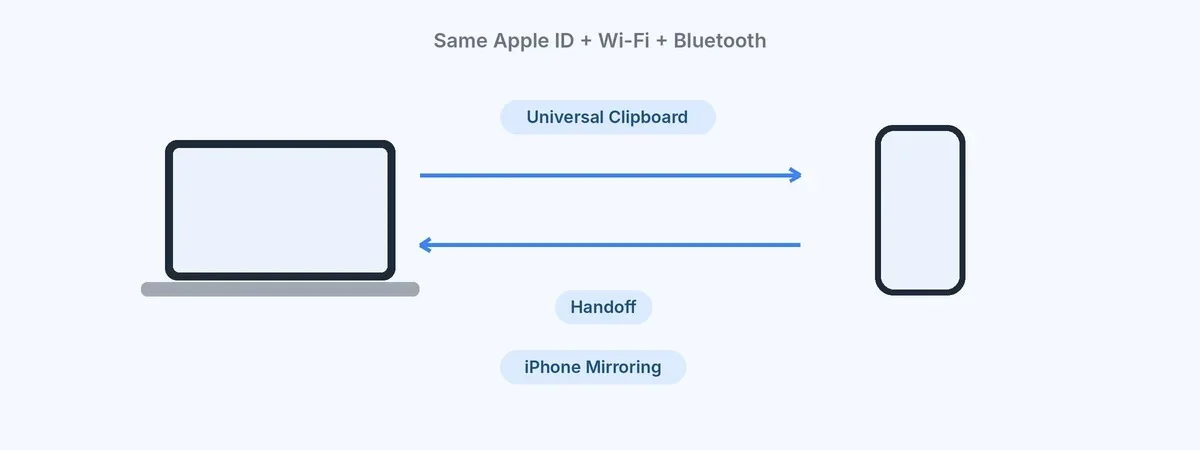
The Apple ecosystem really shines when your devices work together. A few things to turn on:
- Universal Clipboard: copy text or an image on your iPhone and paste it on your Mac, or the other way around. Both devices need to be signed in with the same Apple ID, with Wi-Fi and Bluetooth on.
- iPhone Mirroring: see and control your iPhone from your Mac without picking it up. macOS 27 adds Control Center access, resizable app windows and support for DRM-protected video. Availability can vary by region.
- Handoff: start an email or webpage on one device and pick it up on another.
- Messages and calls: read and reply to texts from your Mac, and see your iPhone calls and notifications.
Set it all up in System Settings by signing into your Apple ID, then turning on the relevant options under General → AirDrop & Handoff.
19. Does a Mac have a built-in password manager?
Yes. The Passwords app stores logins, passkeys and verification codes, syncs them across your Apple devices and unlocks with Touch ID.
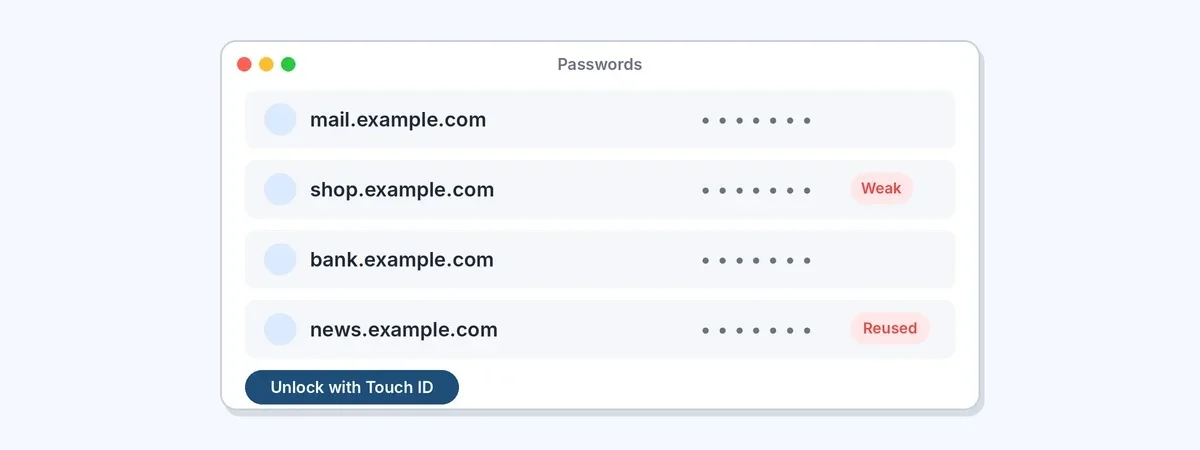
macOS now has a proper Passwords app. It stores logins, passkeys and verification codes, syncs them across your Apple devices, and uses Touch ID to unlock. It also flags weak, reused or leaked passwords so you know what to change.
Apple promised that Passwords on macOS 27 would be able to visit supported websites and change compromised passwords for you automatically. That feature was pulled shortly before release and hasn't shipped yet, so for now you'll still be changing weak passwords yourself.
Even so, it's a perfectly good free password manager, and it means you won't be reusing the same password everywhere.
20. How can I improve MacBook battery life?
Turn on Low Power Mode in System Settings → Battery, lower your screen brightness, and quit the power-hungry apps that Activity Monitor shows.
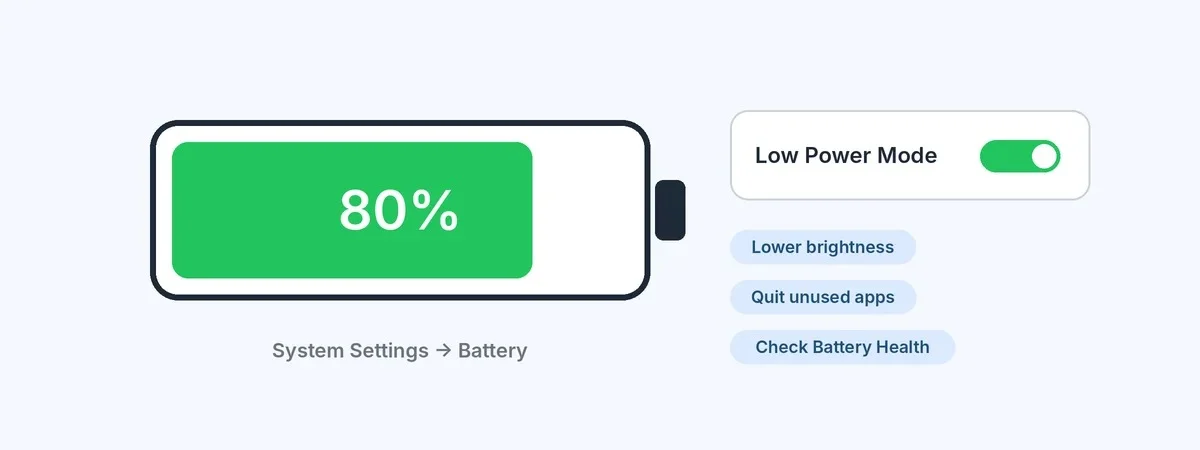
MacBooks are known for long battery life, but a few small tweaks help even more:
- Open System Settings → Battery and check your battery health.
- Turn on Low Power Mode when you're away from a charger. It trims background activity and lowers performance a little to save energy.
- Lower your screen brightness. The display is the biggest power draw on most laptops.
- Quit apps you aren't using, and use Activity Monitor (tip 14) to catch the ones that quietly eat power.
- Keep macOS up to date. Apple says macOS 27 improves efficiency in areas like Safari and Bluetooth.
One more bit of good news: you don't need to unplug your MacBook to keep the battery healthy. macOS is smart about charging, so using it plugged in at a desk is fine.
Quick reference: all 20 tips at a glance
| # | Tip | Shortcut or where to find it |
|---|---|---|
| 1 | Check your macOS version | Apple menu → About This Mac |
| 2 | Screenshots | Cmd + Shift + 3 / 4 / 5 |
| 3 | AirDrop | Right-click → Share → AirDrop |
| 4 | Touch ID | System Settings → Touch ID & Password |
| 5 | Time Machine | System Settings → General → Time Machine |
| 6 | Spotlight | Cmd + Space |
| 7 | Siri AI | Spotlight or the Siri app |
| 8 | Hot Corners | System Settings → Desktop & Dock |
| 9 | Trackpad gestures | System Settings → Trackpad |
| 10 | Window tiling | Hover the green button, or Fn + Control + arrow |
| 11 | Focus | System Settings → Focus |
| 12 | Quick Look | Select a file, press Space |
| 13 | Force Quit | Cmd + Option + Esc |
| 14 | Activity Monitor | Spotlight → "Activity Monitor" |
| 15 | Show hidden files | Cmd + Shift + . |
| 16 | Stay awake | caffeinate -t 3600 in Terminal |
| 17 | Safari tricks | Notify Me, Tab Topics |
| 18 | iPhone connection | Universal Clipboard, iPhone Mirroring |
| 19 | Passwords app | Spotlight → "Passwords" |
| 20 | Battery saving | System Settings → Battery |
Frequently Asked Questions
macOS 27 Golden Gate, released on September 14, 2026. The newest public update is macOS 27.2.1, released November 9, 2026 with bug fixes and security updates. A macOS 27.3 beta exists for testers, but it isn't the public release yet.
No. macOS 27 supports only Apple silicon Macs, meaning M1 and later from 2020 onwards, plus the MacBook Neo. Intel MacBooks stay on macOS 26 Tahoe, the last version built for them. Some Intel models may keep getting security patches for older macOS versions until September 2028.
Not as a separate app. Press Cmd + Shift + 4 to capture a selected area, or Cmd + Shift + 5 to open the screenshot toolbar, which can also record your screen.
Click the trackpad with two fingers, or hold Control and click. If you turn on Tap to click in System Settings → Trackpad, a two-finger tap works too.
Activity Monitor shows what is using your CPU, memory and battery. To close a frozen app, press Cmd + Option + Esc and choose Force Quit.
As of macOS 27.2, Siri AI supports English, French, Japanese, Korean, Portuguese and Spanish. It isn't available in mainland China, and some features vary by region and device, so check Apple's feature availability page.
Apple's general guidance is a drive at least twice the size of your Mac's storage. A 512 GB MacBook, for example, pairs well with a 1 TB external SSD.
In most cases, yes, if your Mac supports it, because 27.2.1 includes security fixes. Make a Time Machine backup first. Some users have reported lag and black previews in Mission Control and Spaces, so if you have a deadline coming up, waiting a week or two is a reasonable choice.
Start exploring your MacBook
Nobody learns all of this in a day, and you don't have to. Pick two or three tips that match how you actually use your laptop. Most people start with screenshots, Spotlight and the trackpad gestures, then slowly add the rest.
Give it a couple of weeks and the Mac will start to feel less like a strange new machine and more like an extension of your hands.
Looking for a MacBook that won't break the bank? Browse EazyPC's refurbished MacBook collection. Every device goes through a 32-point inspection and ships with a warranty. If you want the latest macOS and Apple Intelligence features, look for an M-series model.
New to the Mac world? Read our complete guide: Ultimate Guide to Buying a Refurbished MacBook in India (2026)
Menu paths in this guide follow macOS 27. They may look slightly different on older versions.


