📋 Summary
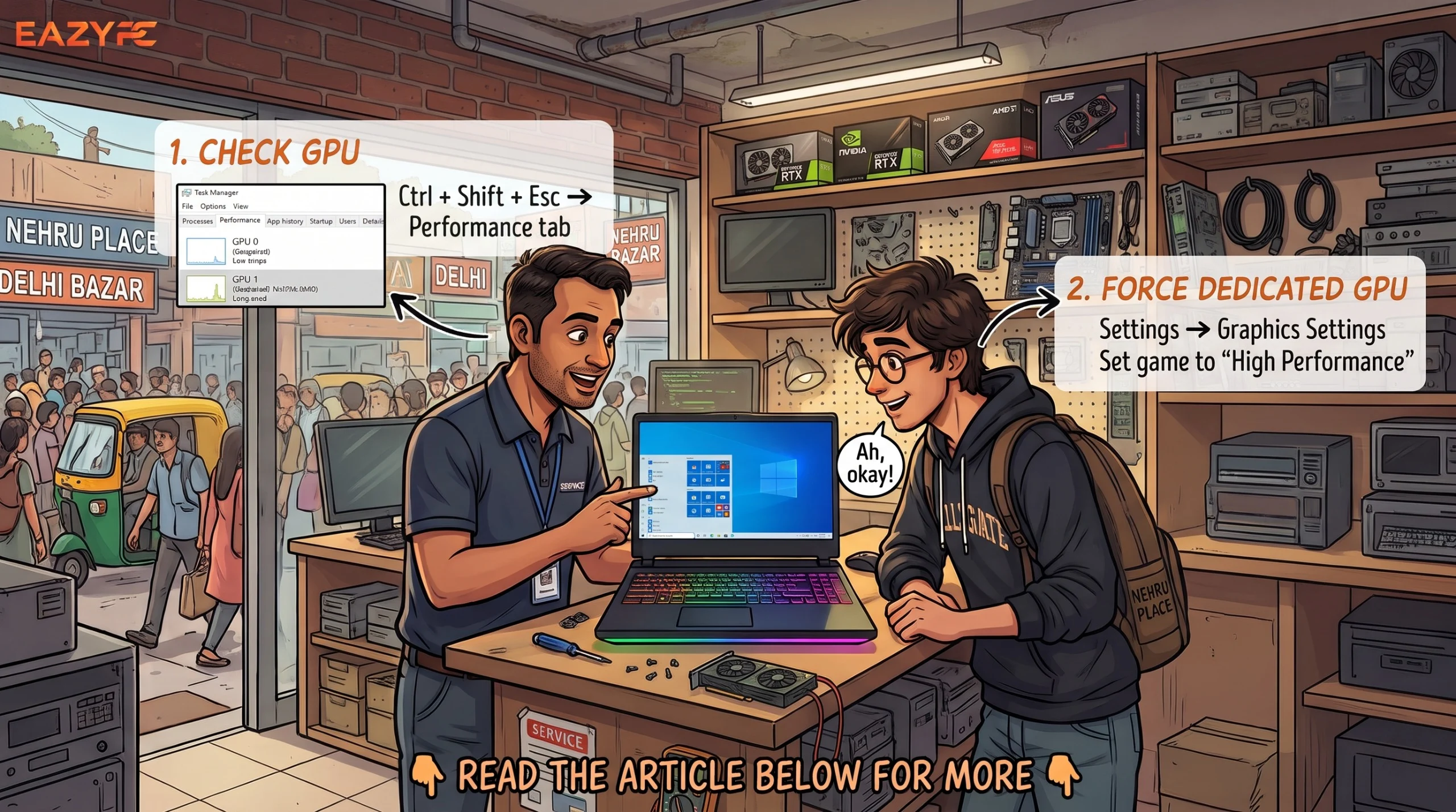
To see which GPU your laptop is using, open Task Manager (Ctrl + Shift + Esc), go to the Performance tab, and watch the GPU entries while your app runs. To force the dedicated GPU in Windows 11, go to Settings > System > Display > Graphics, add the app, click Options, choose High performance, and save. If your laptop has a MUX switch, you can also set the whole machine to dedicated-GPU mode in the manufacturer’s app.
Key takeaways
Two GPUs
Most gaming and creator laptops have two GPUs: a low-power integrated one and a stronger dedicated one. Windows switches between them automatically, but it sometimes picks the wrong one.
Check and pin
Task Manager shows which GPU an app is using, and Windows Graphics settings let you pin an app to the dedicated GPU.
MUX / Advanced Optimus
A MUX switch or Advanced Optimus sends the dedicated GPU’s output straight to your screen for the best performance.
The trade-off
Forcing the dedicated GPU shortens battery life and adds heat, so use it for demanding apps and while plugged in.
How do I check which GPUs my laptop has?
Open Task Manager (Ctrl + Shift + Esc), click the Performance tab, and scroll the left-hand list. You’ll see GPU 0 and possibly GPU 1, with the model’s name in the top right of each.
| Typical integrated GPU |
Typical dedicated GPU |
| Intel Arc, Intel Iris Xe, AMD Radeon Graphics |
NVIDIA GeForce RTX, AMD Radeon RX |
If you only see one GPU, your laptop likely has integrated graphics only, and there’s nothing to force.
How do I see which GPU an app is using?
- Open Task Manager and go to the Processes tab.
- Right-click any column header and tick GPU and GPU engine.
- Launch your game or app.
- Read the “GPU engine” column. It shows something like “GPU 0 - 3D” or “GPU 1 - 3D.”
- Match that number to the GPU list on the Performance tab.
If your game is on the integrated GPU’s number, or the dedicated GPU sits at 0% during play, the app isn’t using your dedicated GPU.
How do I force the dedicated GPU in Windows 11?
The cleanest method works on any laptop. Open Settings > System > Display > Graphics, choose the app, and select the graphics card you want it to use.
- Press Windows + I, then go to System > Display > Graphics.
- Find your app. If it’s missing, click Browse and select its .exe file.
- Click the app, then Options.
- Choose High performance and click Save.
The options are “Let Windows decide,” “Power Saving” (integrated GPU), or “High Performance” (discrete GPU). These Windows preferences take precedence over the same settings in the NVIDIA and AMD control panels, which explains why panel tweaks sometimes do nothing.
Limits to know about
- The setting is per-app. Choosing High performance for one game does not force every application onto that GPU.
- It doesn’t change in-game graphics settings.
- The Graphics page is not guaranteed to appear on every Windows 11 installation, and it’s only meaningful when Windows detects more than one GPU.
- On battery, Windows may favor the integrated GPU to save power, so test while plugged in.
Which tool controls what?
| Tool |
What it does |
Where to find it |
| Windows Graphics settings |
Pins an app to integrated or dedicated GPU |
Settings > System > Display > Graphics |
| NVIDIA App / NVIDIA Control Panel |
Per-app 3D settings, Advanced Optimus controls |
Start menu |
| AMD Software: Adrenalin |
Per-app graphics options |
Start menu |
| Intel Graphics Software |
Per-app graphics options |
Start menu |
| Laptop maker’s app (Armoury Crate, PredatorSense, etc.) |
GPU mode and MUX switch |
Start menu |
What is a MUX switch, and should I use it?
A MUX switch is a physical multiplexer chip on the motherboard that controls which GPU is wired to your display. In standard hybrid mode, even when the dedicated GPU renders a game, the image often passes through the integrated GPU on its way to the screen, which costs some performance. With the MUX switch in discrete mode, you get all of the dedicated GPU’s performance instead of most of it.
Where to find the setting
The exact path depends on your laptop’s brand. Plug in the charger and save your work first, because most of these changes need a restart.
ASUS ROG and TUF (Armoury Crate)
- Open Armoury Crate and install any updates it offers.
- From the Home page, click System Settings, then open the GPU Performance tab. In older versions, this is under Device > System > GPU Power Saving.
- Select Ultimate. This mode uses the MUX switch to connect the screen directly to the dedicated GPU.
- Click Yes when Armoury Crate asks to restart. If Ultimate is greyed out, open the NVIDIA Control Panel, go to 3D Settings > Manage Display Mode, set it to Optimus, and try again.
Acer Predator and Nitro (PredatorSense or NitroSense)
- Open PredatorSense or NitroSense.
- Click the settings (gear) icon in the upper-right corner.
- Find Discrete GPU only and move the slider to the right to turn it on.
- Close the app and restart your laptop. If the option is missing, press F2 at the Acer logo to enter BIOS setup, open the Advanced tab (press Ctrl + S if Display mode is hidden), set Display mode to NVIDIA GPU Only, then save and exit.
MSI (MSI Center)
- Install the latest version of MSI Center and open it.
- Go to Features > General Settings.
- Open the GPU Switch drop-down and select Discrete Graphics Mode.
- Click OK on the prompt to restart the laptop.
Alienware (Alienware Command Center)
- Open Alienware Command Center.
- Select the Performance tab.
- Find the MUX Switch setting and turn it on to use only the dedicated GPU.
- Restart when prompted.
Laptops with Advanced Optimus (NVIDIA Control Panel)
- Right-click the desktop and open NVIDIA Control Panel, or search for it from the Start menu.
- In the left pane, under 3D Settings, select Manage Display Mode.
- Choose NVIDIA GPU only to lock the screen to the dedicated GPU, or Automatic Select to let the driver switch for you.
- Click Apply, then restart if prompted.
Other brands (BIOS)
- Check the maker’s app first (for example, Lenovo Vantage) for a GPU Mode or Hybrid Mode setting.
- If it isn’t there, restart and press the BIOS key (usually F2, F10, or Del) as the logo appears.
- Open the Advanced or Graphics Configuration section.
- Look for Display Mode, GPU Mode, Hybrid Graphics, or MUX Switch, and set it to dGPU, Discrete, or NVIDIA GPU only.
- Save your changes and exit. The laptop restarts with the new setting.
Advanced Optimus is a smarter version. It lets you switch between iGPU and dGPU display connections without a reboot, and the driver can switch automatically when some games launch. It applies only to the built-in display, not external monitors. If the MUX controls are greyed out in the NVIDIA App, updating helps: NVIDIA once released a hotfix because Advanced Optimus MUX options could appear grayed out in some scenarios.
ℹ️ No MUX option doesn’t mean something is broken. Many laptops simply don’t have one.
No MUX switch? Try an external monitor
Plugging into an external monitor can give you MUX-like benefits. It depends on the port. Some laptops wire HDMI or DisplayPort straight to the dedicated GPU, while USB-C or Thunderbolt may go through the integrated one. Check your laptop’s spec sheet.
What does forcing the dedicated GPU cost?
The dedicated GPU draws more power and produces more heat, so expect louder fans and shorter battery life. Runtime unplugged is noticeably shorter in discrete mode, which is why it suits plugged-in gaming. Disabling Optimus entirely also raises idle power use, because the dedicated card can no longer turn itself off.
⭐ Best practice: pin only demanding apps (games, video editors, 3D software) to High performance, and leave everything else on “Let Windows decide.”
Why isn’t my laptop using the dedicated GPU? Troubleshooting checklist
- Update graphics drivers for both the integrated and dedicated GPUs.
- Plug in the charger. Many laptops limit the dedicated GPU on battery.
- Set Windows power mode to best performance (Settings > System > Power & battery).
- Check your laptop maker’s app and avoid Eco or Silent GPU modes.
- Confirm you added the right .exe. Games started from a launcher may need the setting on the game’s own executable.
- Restart after changing MUX or GPU modes.
- Reinstall the driver cleanly if the dedicated GPU doesn’t appear in Task Manager.
Bottom line
The Bottom Line
Checking is quick: Task Manager shows which GPU is doing the work. Forcing it is almost as quick: Windows’ Graphics settings pin an app to High performance in under a minute. For every last frame, look for a MUX switch in your laptop maker’s app, and use it while plugged in.
Frequently asked questions
How do I know if my laptop is using integrated or dedicated graphics?
Open Task Manager, then the Processes tab, and enable the GPU and GPU engine columns. Run your app and see which GPU number it’s attached to. Match that number with GPU 0 or GPU 1 on the Performance tab to see the model’s name.
How do I make a game use my NVIDIA GPU instead of integrated graphics?
Go to Settings > System > Display > Graphics, add the game’s .exe, click Options, select High performance, and save. This preference overrides the NVIDIA and AMD control panels, so it’s the first thing to try.
Is it bad to force the dedicated GPU all the time?
It won’t damage the laptop, but it increases heat, fan noise, and battery drain. Pin only demanding apps and keep everything else on automatic.
What is the difference between a MUX switch and Advanced Optimus?
A manual MUX switch connects your screen directly to the dedicated GPU and usually needs a restart to change. Advanced Optimus can switch the display path automatically without a reboot on supported laptops.
Why is the dedicated GPU at 0% usage in Task Manager?
Usually, the app is running on the integrated GPU, the laptop is on battery with a power-saving mode active, or drivers are outdated. Set the app to High performance, plug in, and update drivers.
Does this work on a Mac?
Apple silicon Macs have no separate GPU to choose; the graphics are part of the chip and macOS manages them automatically. Only older Intel-based MacBook Pros with a separate AMD GPU have an Automatic graphics switching option in the Battery or Energy Saver settings.