Summary
You can't upgrade the internal storage on a modern Apple silicon MacBook, because the SSD is soldered to the logic board. Instead, free up space in System Settings → General → Storage (clear large files, Photos clutter and Apple Intelligence files), then add capacity with an external USB-C or Thunderbolt SSD or iCloud+. Keep 15 to 20 percent of the drive free.
At a glance
| Can you upgrade storage later? |
No. Internal storage is fixed at purchase on MacBook Air, MacBook Pro and MacBook Neo. |
| Fastest fix |
Open System Settings → General → Storage and run the Recommendations. |
| Best add-on |
A 1 TB or larger external SSD, formatted as APFS for Mac-only use. |
| Free-space target |
15 to 20 percent of total capacity. |
| Applies to |
macOS 27 Golden Gate (released September 14, 2026) and recent earlier versions. Last updated November 2026. |
Can you upgrade the storage on a MacBook?
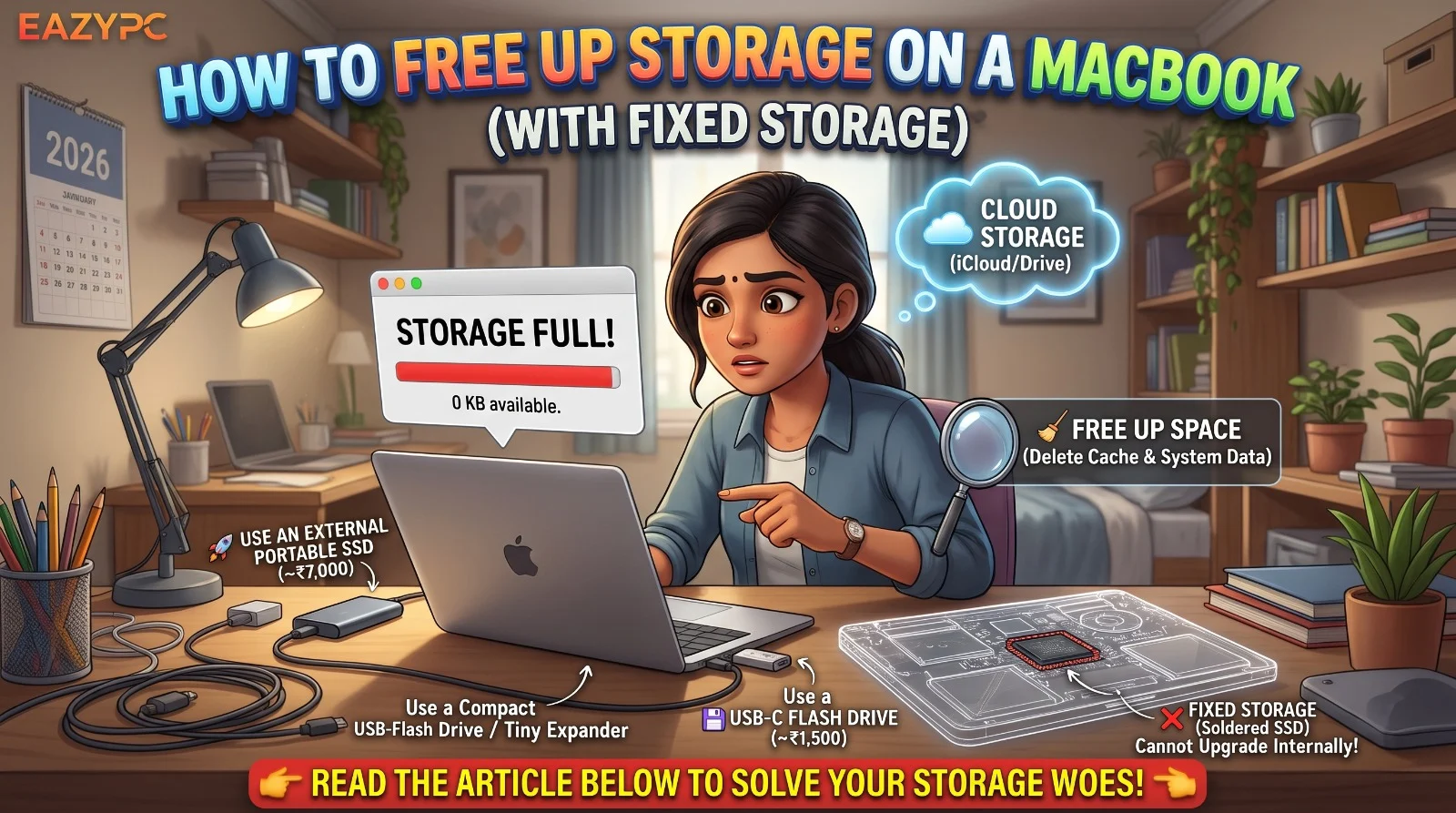
If you've got a modern MacBook, whether that's an Air, a Pro, or the newer MacBook Neo, the SSD is part of the machine. There's no hatch to open and no slot to fill. The storage you picked at checkout is the storage you have for the life of the laptop.
So "upgrading" really means one of two things: clearing out what's already there, or adding storage from the outside. The good news is that most people can get a long way with the first and finish the job with the second, without spending much.
One more thing worth knowing: macOS needs breathing room. Once your drive creeps past roughly 85% full, things start to feel sluggish, updates can fail, and apps can stumble. Aim to keep around 15 to 20 percent free if you can.
How do you check what is using storage on a Mac?
Before you delete anything, look at the real picture.
Open Apple menu → System Settings → General → Storage and give it a moment to calculate. You'll get a colored bar showing apps, documents, photos, system data and so on. Click the little info button next to a category to dig in, and use the Recommendations at the top, which cover things like storing files in iCloud, optimizing Mac storage, and emptying the Trash automatically.
A small heads-up: the number can lag behind reality. If you've just deleted a pile of files and the free space hasn't budged, wait a bit, empty the Trash, or restart before panicking.
Why did macOS 27 and Apple Intelligence take up so much space?
Apple released macOS 27 "Golden Gate" in mid-September 2026, and plenty of people noticed their free space shrinking right after updating. Part of the reason is Apple Intelligence. Its on-device models can take up a surprising chunk of room. Reports put it anywhere from around 8 GB to well over 20 GB on some Macs, with a few people seeing numbers near 30 GB.
What you can do:
- Check how much space it's actually using in System Settings → General → Storage.
- If you don't use these features, turn Apple Intelligence off in System Settings.
- Be aware that switching it off doesn't always delete the downloaded model files. There are guides and community scripts that remove them manually, but that's tinkering with system folders. If you go down that road, make a Time Machine backup first, and understand that a future update may simply download everything again.
If you're on a 256 GB machine, this alone can be the difference between comfortable and constantly full.
How do you free up Mac storage in ten minutes?
These are the low-effort, high-reward moves. Do them in this order.
- Empty the Trash, and then actually empty it. Sounds obvious, but a Trash holding 40 GB of old downloads is more common than you'd think. Turn on automatic emptying after 30 days in the Storage recommendations.
- Hit the Large Files list. In the Storage panel, open Documents and sort by size. Old screen recordings, forgotten disk images (.dmg files), and installers hang around forever. This view alone often turns up 10 to 50 GB.
- Clean out Downloads. Everyone's Downloads folder is a graveyard. Sort by size and be ruthless.
- Uninstall apps you don't use. Open Launchpad or the Applications folder and remove anything you haven't touched in months. Games and video editors are the usual heavyweights.
- Tame Mail and Messages. Large attachments pile up quietly. In Messages, you can review and delete big attachments from the Storage panel. In Mail, removing downloads of old attachments can reclaim a lot.
- Trim your music and podcasts. If you stream Apple Music, download less. There's a setting to optimize storage that removes downloaded tracks automatically when space gets tight.
What hidden files take up the most Mac storage?
This is where the big wins usually hide.
📷 Photos
If your photo library lives on your Mac, it may be the single largest thing on the drive. With iCloud Photos turned on, enable Optimize Mac Storage so full-resolution originals stay in the cloud and your Mac keeps smaller versions. Just make sure your photos have fully finished uploading before you rely on this.
🌐 Browser data and on-device AI files
Browsers can stash caches and, increasingly, on-device AI model files. Clearing cached data in Safari, Chrome or Firefox is safe and sometimes surprisingly effective.
⚙️ "System Data" that won't shrink
That mystery grey chunk is a mix of caches, logs, local snapshots and other system bits. A restart helps more often than you'd expect, and so does letting Time Machine finish and then waiting for old local snapshots to clear on their own.
💻 Developer clutter
If you code, check Xcode's derived data and old simulators, Docker images, Homebrew leftovers (brew cleanup), and forgotten node modules folders. These can balloon into tens of gigabytes without you noticing.
📱 Old iPhone and iPad backups
If you ever backed up devices to your Mac, those backups can be huge. Look under the iPhone or Finder device management area and delete ones you no longer need.
What is the best tool to find large files on a Mac?
If the built-in tools still leave you scratching your head, a disk visualizer shows you everything as a map of blocks, with the biggest ones impossible to miss.
- Grand Perspective is free and does the job nicely.
- Daisy Disk is a paid option with a lovely sunburst view.
- Omni Disk Sweeper is a simple, no-frills favorite.
A word of caution with any cleaner app: be wary of tools that promise one-click magic or scare you with alarming warnings. Stick to reputable names, and never delete things from system folders unless you know exactly what they are.
How do you add more storage to a MacBook?
If you've cleaned the house and you're still tight, this is the real "upgrade" path. You have a few good options.
An external SSD is the best all-round choice for most people, and the table below shows how the other options compare.
| Option |
Best for |
Speed |
Main trade-off |
| External SSD (USB-C, USB4 or Thunderbolt) |
Photos, video projects, backups |
Very fast |
Must carry it and a cable |
| Low-profile USB-C flash drive |
Media libraries, archives |
Moderate |
Slower than a proper SSD |
| SD card (models with a slot) |
Camera files, archives |
Moderate |
Not suited to heavy apps |
| iCloud+ or other cloud storage |
Files you need on every device |
Depends on your connection |
Monthly fee, needs internet |
| Home NAS |
Large family or media archives |
Fast on a home network |
More setup, only at home |
Is an external SSD the best way to add Mac storage?
For most people this is the answer. A portable SSD is fast, small enough to toss in a bag, and usually far cheaper per gigabyte than paying Apple for extra internal storage at purchase time.
A few tips for choosing well:
- Pick an SSD, not a spinning hard drive. The speed difference is huge, and SSDs handle being moved around better.
- Match the connection to your needs. USB-C drives are plenty for documents, photos and backups. If you edit video or work with huge files, look at USB4 or Thunderbolt models. Newer MacBook Pros with Thunderbolt 5 can take advantage of the fastest drives.
- Go bigger than you think. 1 TB is a sensible minimum these days, and 2 TB gives you real room to grow.
- Format it as APFS (using Disk Utility) if it's only for your Mac. Use exFAT if you need to share it with Windows machines.
What to move there: your photo library, video projects, old archives, and your Time Machine backups. Keep the stuff you use every minute on the internal drive.
A tiny "always-in" drive
There are low-profile USB-C flash drives that sit almost flush with the side of your MacBook. They're handy for keeping a library of media or files permanently attached. They're slower than a proper SSD, so think of them as an extension shelf rather than a workhorse.
An SD card (if your MacBook Pro has the slot)
Some MacBook Pro models have a built-in SD card slot. Low-profile cards that sit flush with the body are a neat, cheap way to add archive space. Fine for storage, not great for running heavy apps from.
Cloud storage
iCloud+ is the most seamless option because it plugs right into macOS, Photos, and the Desktop and Documents folders. Dropbox, Google Drive and OneDrive work well too. The trade-off is a monthly bill that adds up over years, and you need a decent connection to pull files back down.
A good rule of thumb: cloud for things you want everywhere, external SSD for big local archives.
A NAS at home
If you're the type with a home network and a lot of data, a small network-attached storage box can hold years of photos, media and backups, and every device in the house can reach it. It's more setup than most people need, but it's a great long-term answer.
What mistakes should you avoid when managing Mac storage?
Flaky cables, cheap drives
Don't run your whole life off a flaky cable or cheap drive. If a drive disconnects mid-write, you can lose data or corrupt a library. Use good cables and reputable brands.
Only copy
Don't delete the only copy of anything. Before you move or purge files, make sure there's a backup, ideally two.
Apps on slow drives
Don't install apps on slow external drives unless you're okay with slow launches.
Filling it to the brim
Don't fill the internal drive to the brim and assume it'll sort itself out. It won't.
How much storage should you buy in a new MacBook?
The cheapest time to get more internal storage is never, honestly. Apple's upgrade pricing is steep. But if this is your main machine for the next five or six years, choosing 512 GB or 1 TB over 256 GB can save a lot of juggling. If you'd rather save money, buy the base model and plan on a good external SSD from day one. Both are completely reasonable choices. It just depends on whether you want everything on the laptop itself.
How do you stop a MacBook from running out of space again?
- Turn on Optimize Mac Storage for Photos and Empty Trash automatically.
- Once a month, glance at the Storage panel and clear out Downloads.
- Every few months, offload big projects to your external SSD.
- Keep an eye out after major macOS updates, since they can quietly claim a lot of space.
- Keep roughly 15 to 20 percent of your drive free.
Frequently asked questions
(Hover over a question to see the answer)
Can I upgrade the SSD in my MacBook?
No. On Apple silicon MacBooks, the storage is soldered to the logic board, so you can't swap or add internal storage after buying. Your options are freeing up space or adding external storage such as an SSD or iCloud+.
How much free space does a MacBook need?
Aim for 15 to 20 percent of the drive free. macOS uses free space for swap files, caches and updates, so a nearly full drive can cause slowdowns, failed updates and app crashes.
Why is "System Data" so large on my Mac?
System Data is a mix of caches, logs, local snapshots and other system files. Restarting, letting Time Machine finish, and using the Storage panel's tools usually shrinks it. Avoid deleting system folders by hand.
Does turning off Apple Intelligence free up space?
Not always. Reports on macOS 27 say switching the feature off doesn't necessarily delete its downloaded models. Check the Storage panel first, and back up before removing any system files manually.
Is an external SSD good enough as extra storage for a MacBook?
Yes. A USB-C, USB4 or Thunderbolt SSD works well for photos, video, archives and backups. Choose 1 TB or more, use a quality cable, and format it as APFS if it's only for your Mac.
Can I keep my Photos library on an external drive?
Yes, as long as the drive is formatted for Mac and stays connected when you open Photos. Alternatively, turn on iCloud Photos with Optimize Mac Storage to keep full-size originals in the cloud.
How much storage should I buy in a new MacBook?
Choose 512 GB or 1 TB if you keep large photo, video or project libraries on the laptop. A base model can work well if you plan to use an external SSD and iCloud+ from the start.
The bottom line
You can't swap the SSD in a modern MacBook, but you rarely need to. Start by finding out what's really taking up space, deal with the big offenders like Photos, system clutter and Apple Intelligence files, and then add a decent external SSD for everything you don't need on the laptop every day. A little housekeeping now saves a lot of frustration later, and your MacBook will feel snappier for it.
New to Mac? Read our 20 macOS tips every new MacBook owner must know. Thinking of buying one? Start with our refurbished MacBook buying guide, or browse Apple MacBooks.